UDISE Plus Aadhaar OTP Not Coming 2026-27 – Why It Fails & What to Do for APAAR and PEN
📋 Table of Contents (click to collapse)
- Why the OTP Doesn't Come — And Why "Network Issue" Is Rarely the Cause
- Reason 1: Aadhaar Linked to a Different Mobile Number
- Reason 2: Mobile Number in Aadhaar Is Inactive or Ported
- Reason 3: OTP Arrived but Expired Before Entry
- Reason 4: UIDAI Service Is Down — How to Check
- Reason 5: Too Many OTP Requests — Account Temporarily Locked
- When OTP Simply Cannot Come — Alternative Paths
- Frequently Asked Questions (FAQs)
Why the OTP Doesn't Come — And Why "Network Issue" Is Rarely the Cause
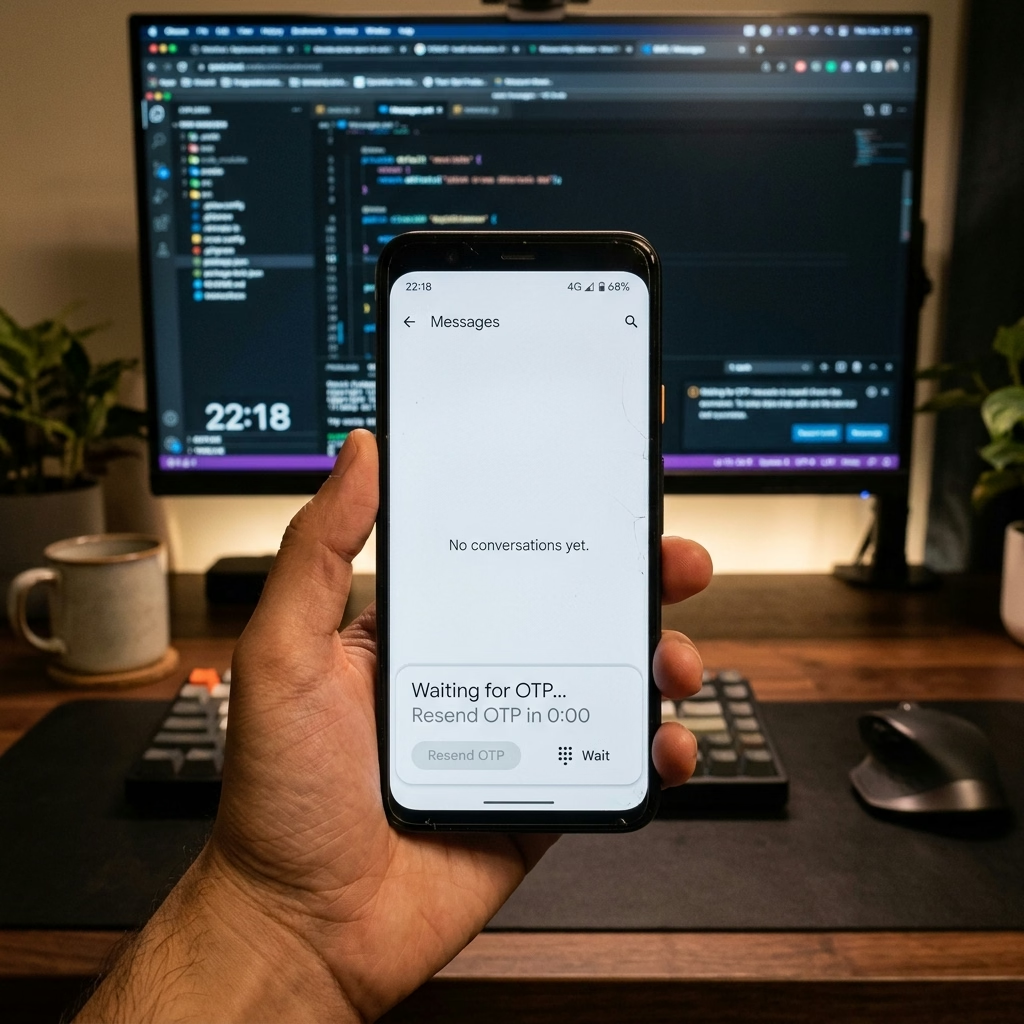
You entered the student's Aadhaar number. You clicked Authenticate. You are watching the parent's phone. Thirty seconds. A minute. Nothing. You click Request OTP again. Another minute. Nothing. The SDMS session timer is counting down. You have 35 more students today.
The first instinct is to blame the network. But in the vast majority of OTP failures, the network is not the problem. UIDAI sent the SMS, and it went to a phone number that is no longer in active use. The parent or teacher enrolled Aadhaar 3 years ago with a number they stopped using 2 years ago. UIDAI sends the OTP to that number.
This page explains the 5 real reasons Aadhaar OTP does not arrive during APAAR or PEN authentication — and exactly what to do for each one, including what to do when OTP simply cannot come before the deadline.
- OTP going to a different mobile number—how to find that number
- Mobile number in Aadhaar is inactive or ported to another operator
- OTP arrived but expired before it could be entered
- UIDAI authentication service is temporarily down
- Too many OTP requests — temporary account lock
- When OTP cannot come — what alternatives exist
| OTP Failure Type | Key Sign | Immediate Fix | Time to Resolve |
|---|---|---|---|
| Wrong mobile number | UIDAI sends the OTP but the parent/teacher never receives it | Check last 3 digits of registered mobile at uidai.gov.in; confirm person has that phone | Instant if phone found; days if mobile update needed |
| Inactive or ported SIM | OTP confirmed sent but no SMS ever arrives on any attempt | Visit a CSC or UIDAI centre to update the mobile number in Aadhaar | 24–48 hours after update |
| OTP expired before entry | You receive the OTP but the portal shows "OTP Expired" | Request new OTP; have entry field ready before requesting; enter within 2–3 minutes | Instant — request new OTP |
| UIDAI service down | The portal shows "OTP Sent" but no SMS arrives, and "Verify Aadhaar" at uidai.gov.in also fails | Stop all authentication attempts; reschedule for next day | Usually resolved within hours |
| Account temporarily locked | OTP request shows "OTP Sent" but no SMS — even on verified active number | Wait 24 hours; attempt one single OTP request after; contact UIDAI helpline (1947) if persists | 24 hours (automatic unlock) |
Reason 1: Aadhaar Linked to a Different Mobile Number
This is the cause in the majority of OTP failures. The parent or teacher enrolled Aadhaar years ago with a mobile number that is no longer their primary or even active number. The UIDAI sends the OTP to that old number every time you attempt authentication. Nobody receives it because nobody uses that number anymore.
How to find out which mobile is registered in Aadhaar:
- Go to uidai.gov.in
- Click "Verify Aadhaar" or "Check Aadhaar Status"
- Enter the Aadhaar number—the portal will show the last 3 digits of the registered mobile number
- Ask the person: which of your phone numbers ends in those 3 digits?
- If they identify the number and still have it, that is the phone that will receive the OTP
- If they no longer have that number, they must update the mobile in Aadhaar before you can perform the authentication
Reason 2: Mobile Number in Aadhaar Is Inactive or Ported
A mobile number that was active when Aadhaar was enrolled may now be inactive due to:
- Non-recharge for 90+ days — most operators deactivate numbers after 90 days without incoming or outgoing activity
- The owner ported the SIM to another operator without updating UIDAI—the old operator deactivates the number, and the new number is different
- The family moved cities and got a local SIM with a new number, abandoning the old one
What you should do:
- The family can update the mobile number in Aadhaar at any UIDAI enrolment centre or Common Service Centre (CSC)—the process takes about 15 minutes and the registry reflects the update within 24-48 hours
- After the registry processes the mobile update, return for Aadhaar authentication with the new registered number
- You cannot perform this process online for mobile number updates—a physical visit is required
Reason 3: OTP Arrived But Expired Before Entry
The parent received the OTP but by the time they communicated it to the operator and the operator entered it, the portal showed "OTP Expired." UIDAI OTPs expire after 10 minutes.
Common scenarios causing expiry:
- Parent is in another room or outside — they call out the OTP slowly while operator types
- Operator had to scroll through multiple screens before finding the OTP entry field
- Multiple SDMS tabs open—the operator entered the OTP in the wrong tab's field
Fix: request a new OTP immediately. Have the OTP entry field visible and ready on screen before requesting the OTP. Ask the parent to hold the phone and read the OTP as soon as it arrives. Enter it within 2-3 minutes of receipt.
Reason 4: UIDAI Service Is Down — How to Check
UIDAI's Aadhaar authentication service occasionally experiences downtime — especially during high-load periods when millions of authentications are happening simultaneously across multiple government portals. During downtime, OTP requests fail silently: the portal shows "OTP Sent" but UIDAI does not dispatch any message.
How to check UIDAI status:
- Go to uidai.gov.in
- Try "Verify Aadhaar" with any Aadhaar number—if this fails too, the UIDAI service is down
- Alternatively, try an Aadhaar authentication from a completely different application (like UIDAI's own app)—if all fail, you face a service issue
- UIDAI's status page or social media (@UIDAI on Twitter) usually posts about extended outages
During UIDAI downtime: stop attempting authentications. Schedule the APAAR/PEN generation for the next day. Repeated failed authentication attempts during downtime can contribute to account lock (next section).
Reason 5: Too Many OTP Requests — Account Temporarily Locked
UIDAI limits the number of OTP requests per Aadhaar per day. If multiple operators have attempted authentication for the same Aadhaar (common when operators entered a student at two schools), or if the same OTP was requested many times without entry, UIDAI temporarily locks Aadhaar-based OTP for that number.
Signs of an account lock: the OTP request appears to succeed ("OTP Sent" message) but no SMS arrives at all—not even after several minutes. This is different from the mobile being inactive, which also produces no SMS.
What you should do:
- Wait 24 hours before attempting another OTP request
- After 24 hours, attempt one single OTP request—do not make multiple requests in the same session
- If the lock persists, contact UIDAI through their grievance portal or toll-free number (1947) for manual unlock assistance
When OTP Simply Cannot Come — Alternative Paths
If you cannot complete Aadhaar authentication before the data entry deadline due to a mobile update or lock that takes days to resolve:
- Save the student's GP and EP data in SDMS completely (all fields except APAAR)
- Save the teacher's profile in Teacher Module completely (all fields except PEN)
- Prepare a written list: student/teacher name, Aadhaar number, specific OTP issue, and the action you are taking (mobile update at CSC, UIDAI lock resolution)
- Submit this list to your Block MIS Coordinator before the deadline
- Submit the SDMS/Teacher Module data with documented pending cases
- BRCs routinely allow a short correction window after submission for OTP-related APAAR/PEN completion
- Complete authentication as soon as the family updates the mobile number or UIDAI resolves the lock—do not wait for the BRC to ask