UDISE Plus Login Not Working 2026-27? Fix These 7 Errors Right Now
📋 Table of Contents (click to collapse)
- Why UDISE+ Login Actually Fails
- Fix: "Invalid Username or Password" Error
- Fix: Captcha Not Loading or Blank Screen
- Fix: "Previous Year Data Not Submitted" Block
- Fix: OTP Not Received on Mobile
- Fix: Server Down or Portal Very Slow
- Fix: Session Keeps Timing Out Mid-Entry
- Fix: Forgot Password / Reset Not Working
- Frequently Asked Questions (FAQs)
Why UDISE+ Login Actually Fails
It is 10 PM. Data entry deadline is tomorrow. You open udiseplus.gov.in, type your UDISE code, enter the password — and the page just reloads. No error message. No explanation. You try again. Same result. You call a colleague. They say try Chrome. You are already on Chrome. The clock is moving and nothing is working.
This scenario plays out in thousands of schools across India every year during deadline season. And the standard advice online — "check your internet," "clear your cache," "try again later" — does not actually solve anything because it ignores what is really wrong.
Every UDISE+ login failure has a specific cause. This page covers 7 real errors that teachers, principals, and school staff actually face — with exact steps to fix each one, not guesses.
- "Invalid Username or Password" — even when you are sure it is correct
- Captcha not loading or showing a completely blank box
- "Previous year data not submitted" blocking current year access
- OTP that never arrives on your registered mobile number
- Portal loading endlessly or showing 503/server error during deadline season
- Session expiring while you are in the middle of data entry
- No "Forgot Password" link — or reset that simply does not work
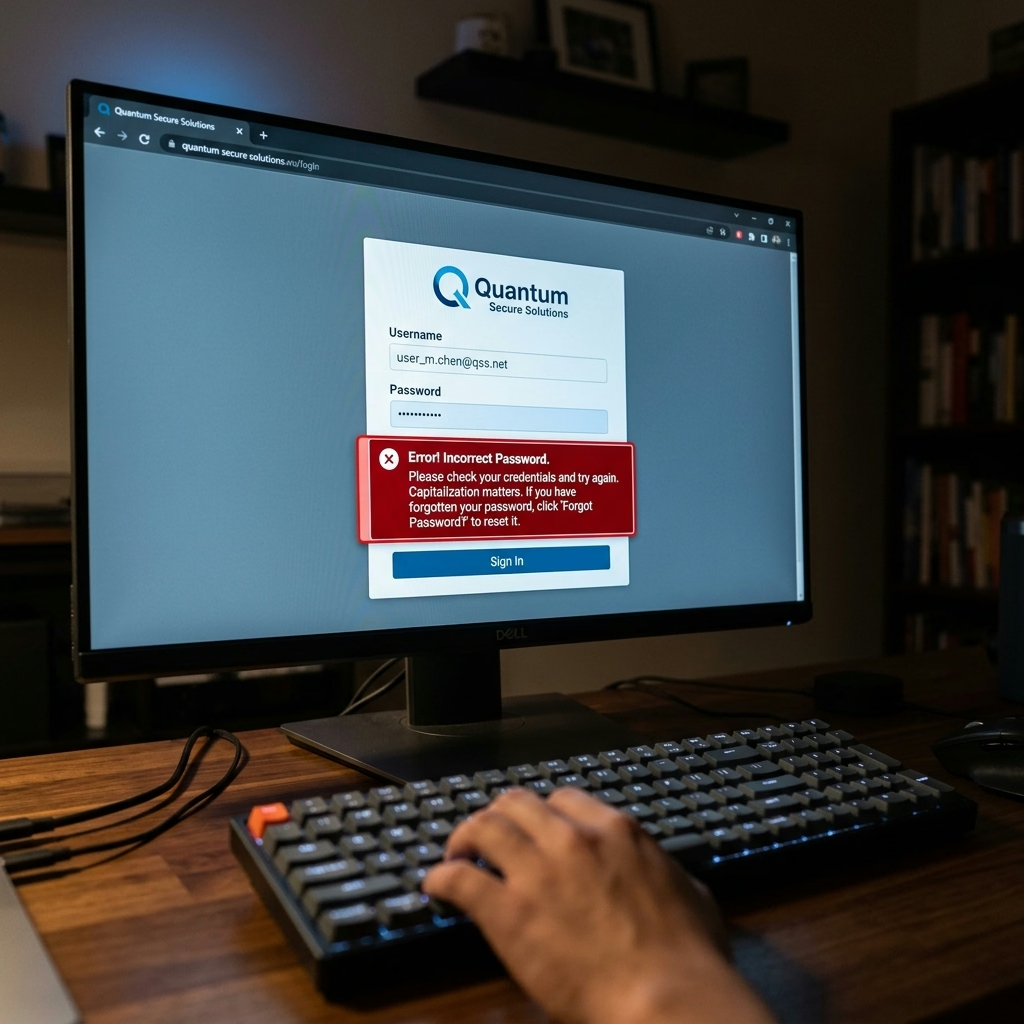
Fix: "Invalid Username or Password" Error
Users report this UDISE+ error more than any other. A technical failure is almost never the cause — it is almost always one of four specific things.
- Wrong username format for the module. For school-level modules, the username is your school\'s exact 11-digit UDISE code — not a short version, not your district code, not your school name. It must be exactly 11 digits. Unsure of your code? Look it up at udiseplus.gov.in → School Directory, or check your previous year\'s login confirmation letter from the Block office.
- Teacher Module uses a different username. The Teacher Module (udiseplus.gov.in/udiseteacher/) requires a Teacher Reference Number (TRN) — not the school\'s UDISE code. These are two completely different credentials. If you are logging into Teacher Module using the school\'s UDISE code, it will always say invalid — it is the wrong username type, not a wrong password.
- Someone changed your password without your knowledge. Block MIS Coordinators have admin access and sometimes reset school passwords. A colleague at your school may also have changed it. This is the single most common reason for a "correct password" failure — you entered the correct old password, but it is no longer current.
- Caps Lock or keyboard input language. UDISE+ passwords are fully case-sensitive. "School@2026" and "school@2026" are different passwords. Also verify your keyboard is typing in English and not switching to a regional language input.
Fix: Captcha Not Loading or Blank Screen
The captcha box appears empty, throws an error, or never loads at all. Browser extensions — not the portal itself — cause this by blocking the captcha script from running.
- Open the UDISE+ portal in Incognito mode (Ctrl + Shift + N in Chrome). Incognito disables all extensions by default. If the captcha loads in Incognito, an extension is blocking it in normal mode.
- If the captcha is visible but unreadable, click the refresh icon next to the captcha image — do not reload the entire page. Reloading the page resets your session and starts the login process over.
- If Incognito also does not fix it, switch to Mozilla Firefox. UDISE+ captcha uses a specific library that occasionally conflicts with certain Chrome versions.
- If you run antivirus software on school computers, the antivirus web shield may block captcha scripts. Temporarily disable the web shield, attempt the login, then re-enable the shield.
Fix: "Previous Year Data Not Submitted" Block
This error traps entire schools every year — not because you did not enter the data, but because you skipped the Freeze or Final Submit button at the end. The portal does not treat saved drafts as submitted. The portal requires you to freeze your data before it opens the next year's cycle.
- Log into the School Profile Module (udiseplus.gov.in/moe_udise/) separately using your UDISE code. Inside the dashboard, look for any section showing "Data Entry in Progress" or "Not Submitted."
- Do the same in the Teacher Module (udiseplus.gov.in/udiseteacher/) — this is the second most common module with pending freezes.
- Open the flagged section, verify the data is complete, then click "Freeze Data" or "Final Submit" — whichever option appears.
- After you freeze all sections, log out completely and log back in fresh. You should now be able to access the current year portal.
Fix: OTP Not Received on Mobile
When you click "Forgot Password," the portal sends an OTP to the mobile number that you registered when you created the account. If the OTP does not arrive, here is why — and what you should do.
- Wait 3 full minutes before concluding that the system failed. Government SMS gateways process requests slowly, especially during peak office hours.
- Check whether you still own the registered number. Many schools registered in 2018–2021 using a headmaster's number that has since changed. If the registered number belongs to someone who no longer works at your school, they will receive the OTP — not you.
- Do not request the OTP more than twice in a row. Repeated requests in quick succession trigger a block — the system suspends further OTPs for that session.
- If the registered number is wrong or inaccessible, skip the OTP flow entirely. Go to your Block MIS Coordinator in person with a school letterhead request. They can reset the password at the admin level without needing OTP verification.
Fix: Server Down or Portal Very Slow
Between September and November — and again near the March deadline — UDISE+ servers receive millions of simultaneous login attempts. The result: pages that never finish loading, login buttons that appear frozen, and 503 or "Service Unavailable" errors.
- Try logging in between 5 AM and 8 AM — this is when server load across India is at its lowest
- Use your state's direct UDISE+ URL instead of the national udiseplus.gov.in — state servers operate independently and are often less congested
- Do not repeatedly click the Login button — each click adds a new request to an already overloaded server and makes it slower for everyone, including yourself
- If the server is down for more than 6 hours during a deadline week, the state education department typically issues a deadline extension circular — screenshot or save it as official proof of the outage
Fix: Session Keeps Timing Out Mid-Entry
The UDISE+ portal automatically logs you out after 20–30 minutes of inactivity. The portal implements this security feature, and you cannot disable it. You risk losing unsaved data in a long form. Here is how you can protect your work.
- Click "Save" immediately after completing each individual section — never fill an entire module in one go without saving
- Keep the UDISE+ tab as your active, foreground browser tab at all times. If you switch away for more than 15 minutes, the system registers it as inactivity
- If you return to find the login page has appeared, do not press the browser Back button — log in fresh, navigate to the module, and check which sections retained their "Saved" status
Fix: Forgot Password / Reset Not Working
Some UDISE+ modules — the School Profile Module in particular — do not display a "Forgot Password" link on the login page at all. The portal designers did this intentionally. The developers configured those modules for password management at the block level, not the school level.
If the portal lacks the forgot password option, you must resolve the issue offline:
- Visit your Block MIS Coordinator's office with your school's 11-digit UDISE code written on an official school letterhead
- Request a password reset in writing — most BRCs have a standard form for this
- If the BRC is unavailable or on leave, escalate directly to the District Education Officer's MIS section
Quick Error Reference
| Error You See | Most Likely Cause | First Step |
|---|---|---|
| Invalid credentials | Password changed / wrong username type | Confirm module and username format, call BRC |
| Captcha blank or missing | Browser extension blocking script | Open in Incognito mode |
| Previous year data block | Freeze button never clicked | Log into School Profile / Teacher module |
| OTP not received | Old or changed mobile number on record | Contact BRC in person with school letter |
| Server down / 503 error | Peak load during deadline season | Log in between 5–8 AM, use state direct URL |
| Session expired mid-entry | 20–30 min inactivity timeout | Save after each section, keep tab active |
| No Forgot Password link | Block-level password control module | Visit BRC office with school letterhead |
Udise Plus Student (SDMS) Login Module (State Wise)
❓ Frequently Asked Questions (FAQs)
Here are the most common questions people ask about UDISE Plus Login Not Working 2026-27? Fix These 7 Errors Right Now.
✅ Conclusion
UDISE+ login problems are frustrating — but you can resolve almost every error with a specific fix. Technical glitches do not cause most failures. Instead, they happen because you or your school missed a process step: a module that you left unsubmitted last year, a password reset that someone performed without telling you, or a registered mobile number that changed years ago. Keep your Block MIS Coordinator's direct mobile number ready — they have backend access to fix in minutes what no amount of browser refreshing will solve. Log in early, save data after every section, and never wait until the final day of the deadline window.