UDISE Plus: Login Guide for Student Module, Teacher, Profile & All Modules 2026-27
📋 Table of Contents (click to collapse)
- Introduction to UDISE Plus & Unified Educational Database
- Main Objectives of the UDISE Plus Platform
- Overview of UDISE Plus All Modules and Portals
- Accessing UDISE Plus All Modules via Selection Dashboard
- UDISE Plus School Profile and Facilities Module Login Process
- UDISE Plus Teacher Module Login & Service Records Management
- UDISE Plus Student Module (SDMS) Login & Data Updating Guide
- State-wise UDISE Plus Student Module Login Links & State IDs
- How to Update Student Data Profiles (GP, EP, SF)
- Adding Fresh Class 1 Student Admissions in SDMS
- Accessing the UDISE Plus Report Module & Analytical Summaries
- Managing School Directory and User Access Settings
- Searching School Details on the Know Your School Portal
- Key Benefits of the Integrated UDISE Plus Database
- Major Challenges Faced During UDISE Plus Operations
- Troubleshooting Login Failures & Common Portal Mismatch Errors
- Frequently Asked Questions (FAQs)
Introduction to UDISE Plus & Unified Educational Database
The Unified District Information System for Education Plus (UDISE+) is the largest educational management information system in the world, capturing data from over 1.5 million schools, 9.5 million teachers, and 260 million students across India. Developed and maintained by the Department of School Education and Literacy, Ministry of Education, Government of India, the platform acts as the central digital repository for all school-level statistics. Navigating the udise plus login student module, teacher module, and profile management screens is a regular duty for school heads, MIS coordinators, and educators to keep national records accurate.
Originally launched in 2012 as an integration of the District Information System for Education (DISE) for primary schools and the Secondary Education Management Information System (SEMIS) for high schools, the platform underwent a massive digital transformation in 2018–19. The system became UDISE Plus, moving from offline, paper-based data collection forms (DCF) to a real-time, cloud-based online data capture console. Today, the portal ensures complete transparency, audit trails, and data reliability, helping governments coordinate infrastructure funding, teacher deployment, and programmatic planning under the National Education Policy (NEP 2020).
Writing and verifying entries correctly inside the portal prevents administrative errors and avoids rejection tags during block-level reviews. In this comprehensive guide, we cover everything you need to know about the udise plus all modules registry, state-wise links, school profile updates, teacher profiles, student tracking via SDMS, reports download, and KYS tools. This guide will walk you through the entire login and update process step-by-step with clean screenshots.
Main Objectives of the UDISE Plus Platform
The primary goal of the UDISE+ database is to replace outdated paper collections with a modernized, data-driven framework. By requiring schools to complete the udise plus login student module and related registries annually, the Ministry of Education seeks to achieve several key objectives:
- Evidence-Based Policy Formulation: Provides precise, empirical statistics to draft and evaluate national education schemes, determine school budgets, and allocate teaching posts.
- Real-Time Tracking: Monitors key educational performance indicators (KPIs) such as gross enrollment ratios, net enrollment rates, retention cycles, gender parity indices, and drop-out trends.
- Resource Optimization: Maps physical amenities like toilet blocks, drinking water points, electricity grids, internet terminals, and library books. This helps direct infrastructure grants directly to deficit schools.
- Smart Data Validation: Implements automated validation checks during data entry, preventing schools from entering logically conflicting stats (e.g. reporting computer labs in a building without electricity).
- Universal ID Integration: Links student profiles with their unique Permanent Education Numbers (PEN) and Aadhaar, creating a traceable academic history as students move between schools or states.
Completing these entries is not just an optional statistical task; it is an annual administrative mandate for all recognized institutions across the country, whether government-run, aided, or private. Inaccurate reporting can result in regulatory warnings, audit red-flags, and the withholding of composite school grants.
Overview of UDISE Plus All Modules and Portals
The UDISE+ console is structured into distinct modules to handle different data areas and user roles. Instead of relying on a single, congested interface, the system divides operations into the following dedicated portals:
- School Profile & Facilities Module: Captures administrative school attributes, management types, location parameters, infrastructure indicators, toilet availability, drinking water sources, school grants receipts, and digital teaching aids.
- Teacher Module: Tracks individual teaching and non-teaching profiles, academic qualifications, professional training details, service records, mobile numbers, and coordinates teacher transfers using the National Teacher Code.
- Student Module (SDMS): Manages student-level demographics, admission dates, class/section progress, student facilities (uniforms, free books, bicycles), mid-day meal logs, and links with APAAR IDs.
- Report Module: Allows authorized users, block officers, and state coordinators to generate and download customized district or school-level report cards, raw Excel spreadsheets, and comparative charts.
- School Directory / User Management Module: Administers school credentials, adds new schools, resets passwords, and changes user roles under the education department hierarchy.
Understanding which module handles what information is crucial before accessing the portal. Let's look at how to navigate the central portal selection screen to access these registries.
Accessing UDISE Plus All Modules via Selection Dashboard
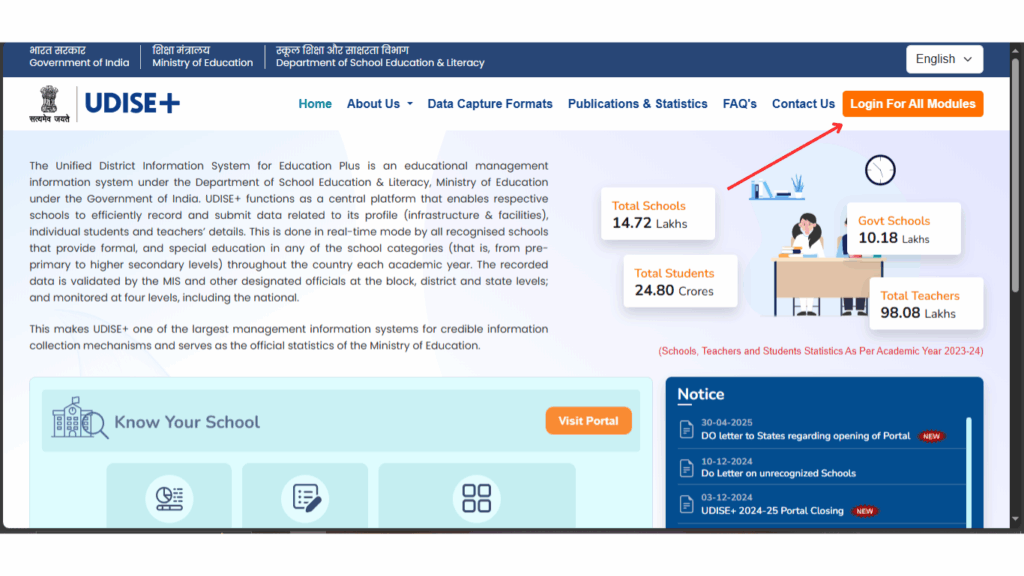
To access any of the portals, open your browser and navigate to the central login dashboard at: udiseplus.gov.in. On the main homepage, you will see a prominent blue link button labeled "Login For All Modules". Click this button to access the unified module gateway.
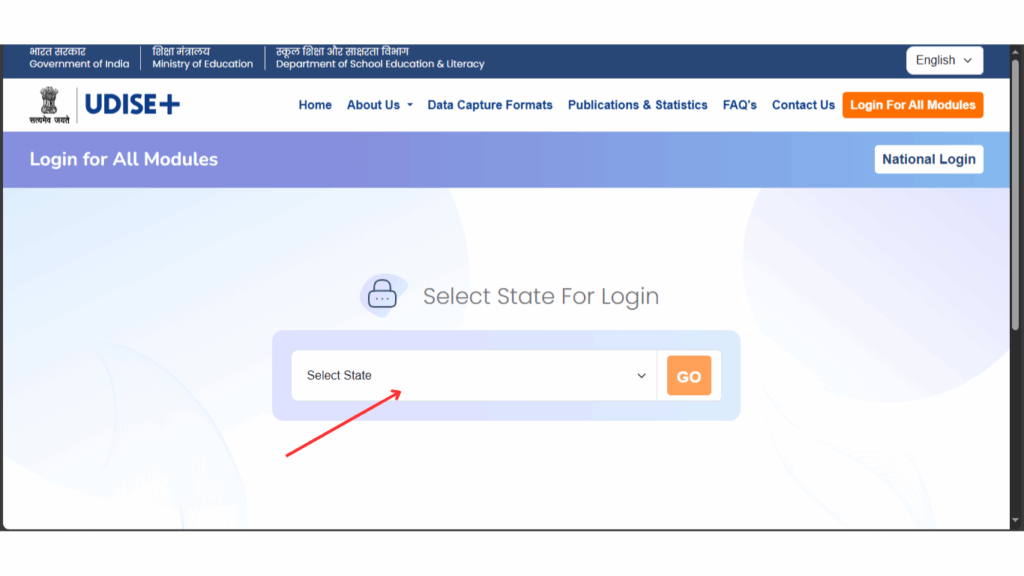
On the selection page, you must first specify your state. Locate the dropdown menu under the module selection block, select the state where your school is registered, and click the adjacent "Go" button. This filters the login gateway and presents the correct regional server links for your state.
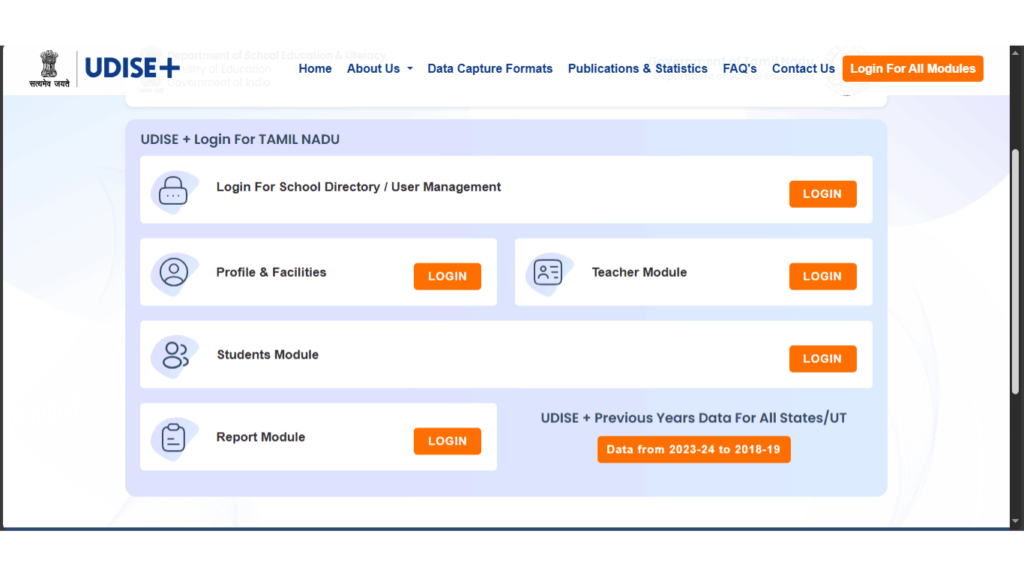
The gateway displays the unified list of modules. Depending on the data you need to enter, select either the School Profile Module, the Teacher Module, or the udise plus login student module. Entering your school credentials here will open the respective administrative console.
UDISE Plus School Profile and Facilities Module Login Process
The School Profile Module is the first module that school coordinators must complete at the start of the data collection cycle. This module records the physical infrastructure and facility profiles of the school. To access this dashboard, click the "Profile & Facilities" link on the modules list or go directly to the profile login page.
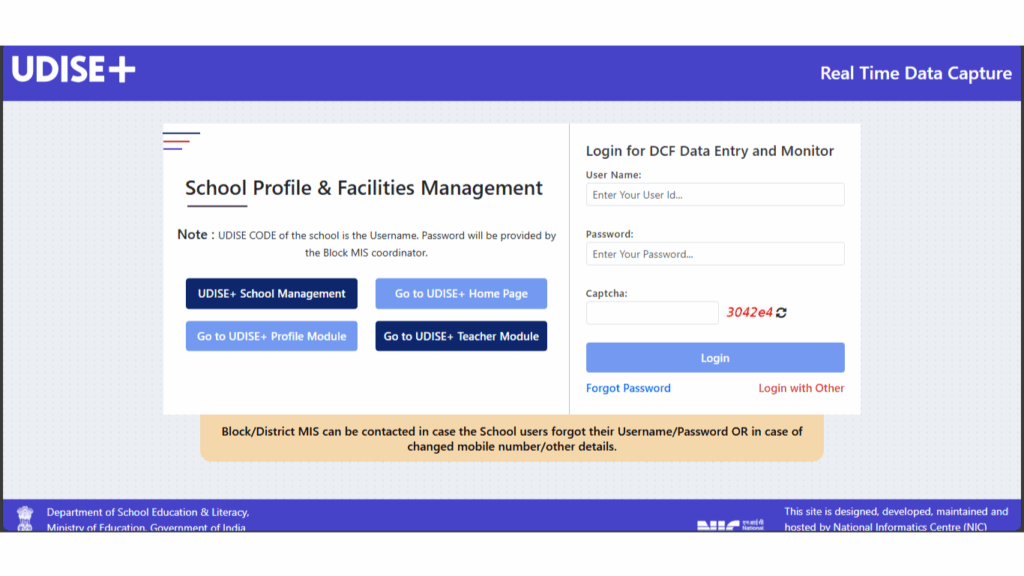
Enter the login credentials as follows:
- Username: Type in your school's unique 11-digit UDISE Code.
- Password: Enter the password provided by your Block MIS Coordinator. If you change it locally, ensure you keep it noted securely.
- Captcha: Type the visual code shown on the screen. Click the Login button.
Once logged in, verify the basic school identifiers such as village name, category (primary/upper primary/secondary), and management type (government/aided/private). Any changes to these core school parameters cannot be done by the school user; you must submit a physical change request form to your BRC or District MIS unit.
UDISE Plus Teacher Module Login & Service Records Management
The Teacher Module maintains an active digital database of all school staff members. It tracks qualifications, postings, promotions, mobile numbers, and training details. To access the staff directory, click on the **Teacher Module** link on the modules list.
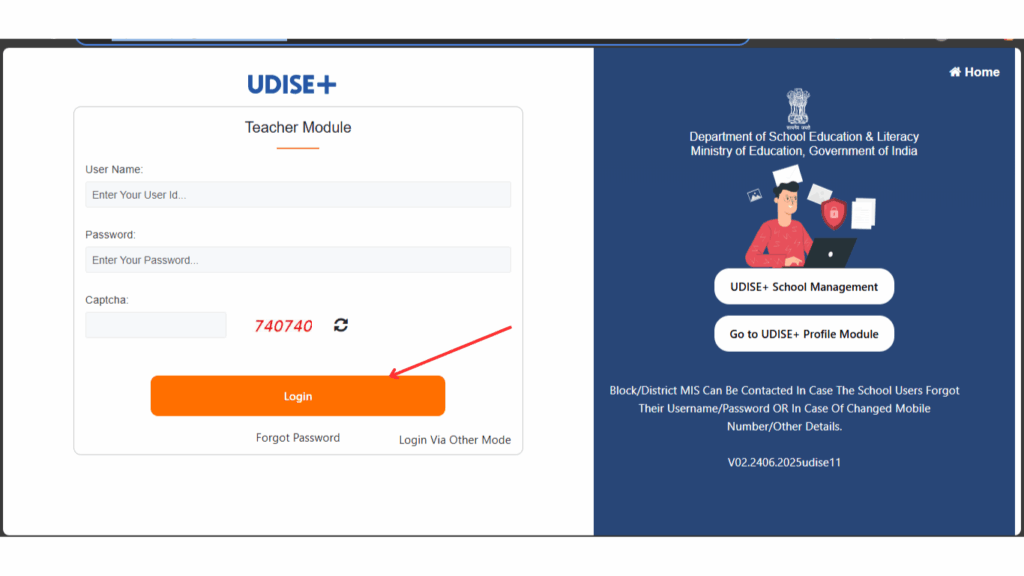
Type in your school UDISE code as the username, enter the password, resolve the Captcha, and click Login. Inside the dashboard, you will see your **School User Matrix** showing whether you are allowed to add new staff, import teachers, or delete profiles. Always check this matrix before updating entries. If you need to map a head teacher or HOS, locate the "Map" button next to "Head of the School" in your teaching staff list and select the mapping method (Within School, Other School, or Block Level).
UDISE Plus Student Module (SDMS) Login & Data Updating Guide
The Student Database Management System (SDMS) tracks individual student progress, enrollment, and demographic data. Logging into this module is the most frequent data entry task for school staff. To access the student registry, click on the **Student Module** link. Select your state from the dropdown menu on the state gateway page and click the adjacent **"Go"** button.
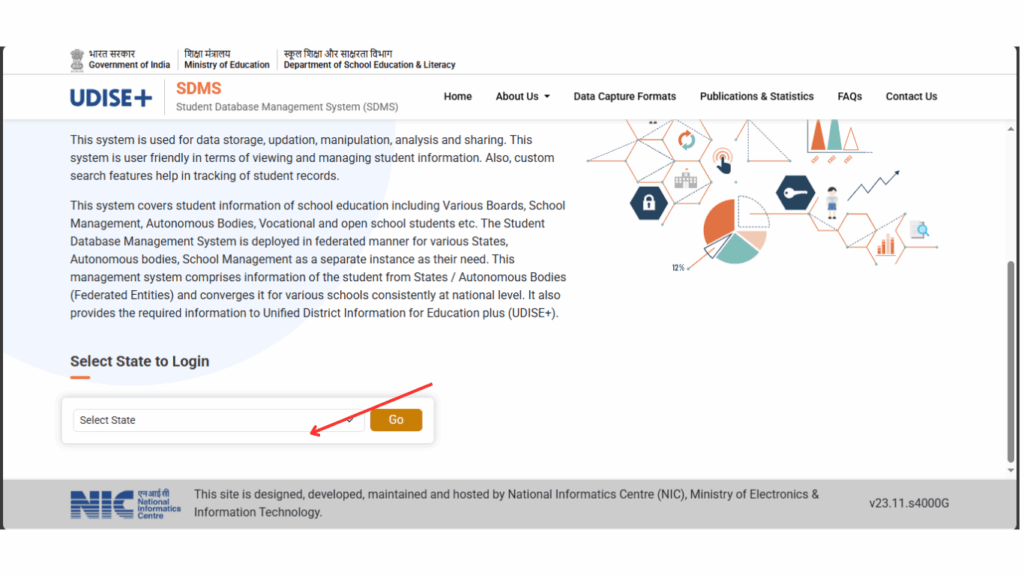
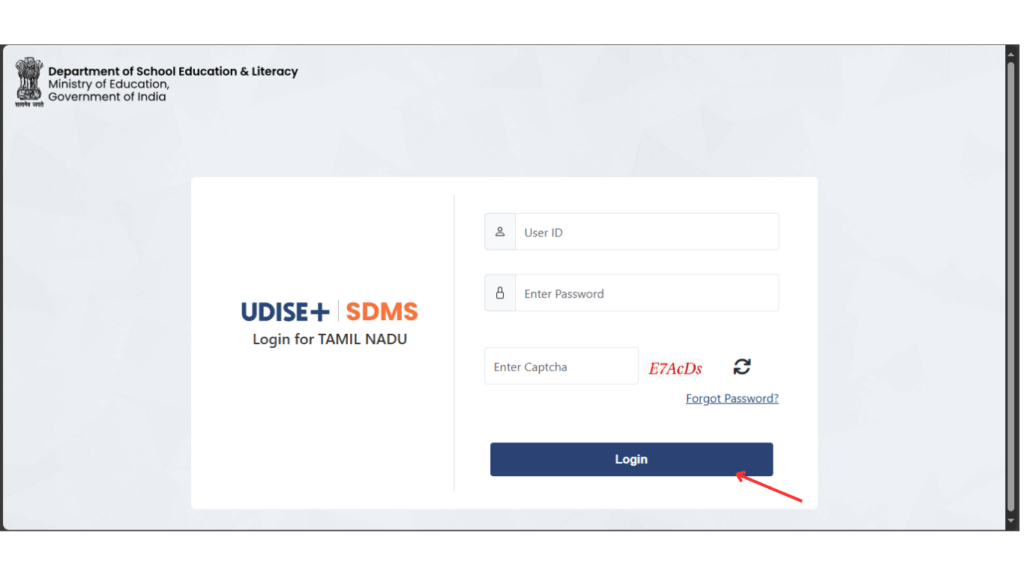
The browser redirects you to the login gateway for the selected state. Enter your school user ID (UDISE code), password, type the Captcha code, and click the blue **"Login"** button to enter the SDMS school console.
State-wise UDISE Plus Student Module Login Links & State IDs
For school administrators seeking direct access without navigating the state selection dropdown on every login, the Department of School Education provides direct entry points mapped with specific state identifier query parameters. You can locate your respective state or union territory in the comprehensive lookup table below to access the dedicated regional server dashboard for the udise plus login student module:
| State / Union Territory | State Code | Direct UDISE Plus Student Module URL |
|---|---|---|
| Andaman & Nicobar Islands | AN (135) | A&N Islands Login |
| Andhra Pradesh | AP (128) | Andhra Pradesh Login |
| Arunachal Pradesh | AR (112) | Arunachal Pradesh Login |
| Assam | AS (118) | Assam Login |
| Bihar | BR (110) | Bihar Login |
| Chandigarh | CH (104) | Chandigarh Login |
| Chhattisgarh | CG (122) | Chhattisgarh Login |
| Dadra & Nagar Haveli and Daman & Diu | DN (138) | DN & DD Login |
| Delhi | DL (107) | Delhi Login |
| Goa | GA (130) | Goa Login |
| Gujarat | GJ (124) | Gujarat Login |
| Haryana | HR (106) | Haryana Login |
| Himachal Pradesh | HP (102) | Himachal Pradesh Login |
| Jammu & Kashmir | JK (101) | Jammu & Kashmir Login |
| Jharkhand | JH (120) | Jharkhand Login |
| Karnataka | KA (129) | Karnataka Login |
| Kerala | KL (132) | Kerala Login |
| Ladakh | LA (137) | Ladakh Login |
| Lakshadweep | LD (131) | Lakshadweep Login |
| Madhya Pradesh | MP (123) | Madhya Pradesh Login |
| Maharashtra | MH (127) | Maharashtra Login |
| Manipur | MN (114) | Manipur Login |
| Meghalaya | ML (117) | Meghalaya Login |
| Mizoram | MZ (115) | Mizoram Login |
| Nagaland | NL (113) | Nagaland Login |
| Odisha | OR (121) | Odisha Login |
| Puducherry | PY (134) | Puducherry Login |
| Punjab | PB (103) | Punjab Login |
| Rajasthan | RJ (108) | Rajasthan Login |
| Sikkim | SK (111) | Sikkim Login |
| Tamil Nadu | TN (133) | Tamil Nadu Login |
| Telangana | TS (136) | Telangana Login |
| Tripura | TR (116) | Tripura Login |
| Uttar Pradesh | UP (109) | Uttar Pradesh Login |
| Uttarakhand | UK (105) | Uttarakhand Login |
| West Bengal | WB (119) | West Bengal Login |
| Kendriya Vidyalaya Sangathan (KVS) | KVS (192) | KVS Portal Login |
| Navodaya Vidyalaya Samiti (NVS) | NVS (193) | NVS Portal Login |
| MSRVVP (Veda Pathashala) | MS (161) | MSRVVP Portal Login |
Simply choose your regional board or administrative zone, click the direct hyperlink, and input your school registry credentials to initiate student data updates directly in the central database console.
How to Update Student Data Profiles (GP, EP, SF)
Once you enter the student database console, the system displays the class-wise enrollment numbers for the current academic session 2026-27. To view and edit student profiles, click the "View/Manage" button next to any class list. Every student record must be updated in three distinct profile cards:
- GP (General Profile): Contains the student's name, gender, date of birth, mother's/father's name, minority status, social category (SC/ST/OBC), CWSN status, and 12-digit Aadhaar number. It is critical to ensure that the student name and DOB match the Aadhaar registry exactly to avoid validation flags during block audit reviews.
- EP (Enrollment Profile): Records the school admission number, date of admission, roll number, stream (for higher secondary classes), class section, and previous academic performance. You must also select the student's medium of instruction and whether they were promoted or are repeating the grade.
- SF (Student Facilities): Captures facilities provided to the student, such as free textbooks, uniforms, transport support, mid-day meals, boarding facilities, or government scholarships. It also records whether the student has been screened for specific learning disabilities (SLD) or autism spectrum disorders.
Ensure you save and submit each section. Once all three profile cards show a green "Completed" status, the student's record is marked active for the current academic session. Administrators must complete all records to enable school certification.
Adding Fresh Class 1 Student Admissions in SDMS
At the start of the academic term, schools must add new enrollments. While students in senior classes are promoted automatically using the "Progression Activity" module, fresh Class 1 admissions must be added manually. To add a Class 1 student, log into the SDMS console and click the **"Add Student"** link card on the class dashboard.
Fill in the demographic details, general attributes, and enrollment fields. The portal will check if the student has a valid Aadhaar. You must also obtain the parent's consent to generate their **APAAR ID** (Automated Permanent Academic Registry) directly through the portal. Once submitted, the system assigns a Permanent Education Number (PEN) to the student, which will track their progress throughout their school career. If the child does not have an Aadhaar card, you must register them using the parent's Aadhaar or temporary enrollment ID (EID) to proceed.
Accessing the UDISE Plus Report Module & Analytical Summaries
The UDISE+ Report Module is an analytics and reporting portal used by school heads, inspectors, and education planners to generate data summaries. It compiles reports on school infrastructure, student parity, and teacher-pupil ratios. To access these reports, navigate to the **Reports Module** homepage.
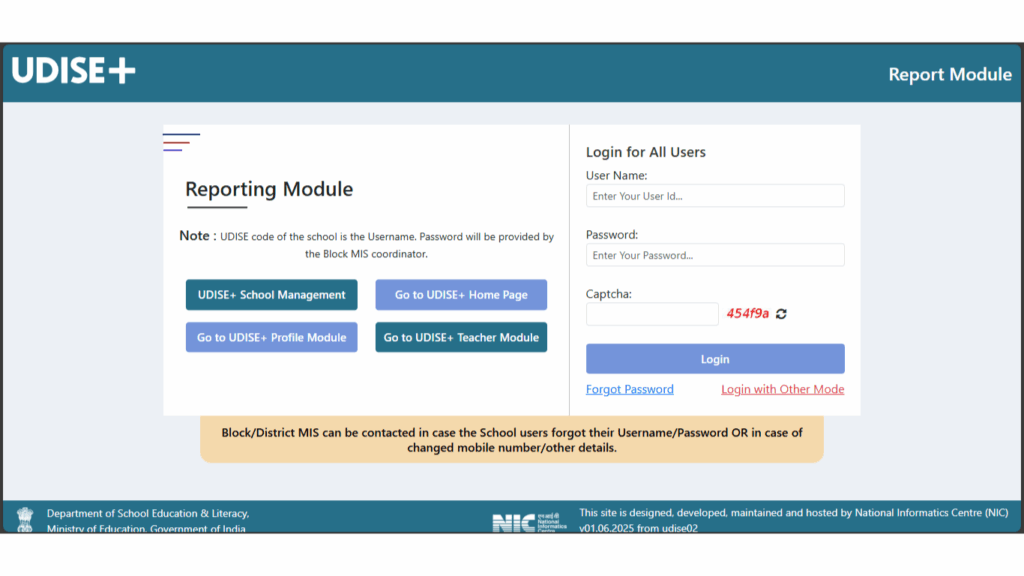
Enter your UDISE code as the username, enter your password, resolve the Captcha, and click Login. The dashboard allows you to: - Download school-wise or village-wise profile summary sheets. - Generate customized spreadsheets for district-level presentations. - Track data submission dates and check BRC verification indicators. - Export school reports in PDF or Excel formats for inspection purposes.
Managing School Directory and User Access Settings
The School Directory and User Management Module is used to manage school details and user accounts. It helps education department officials maintain an updated list of schools and control user access. To access this management console, navigate to the directory login screen.
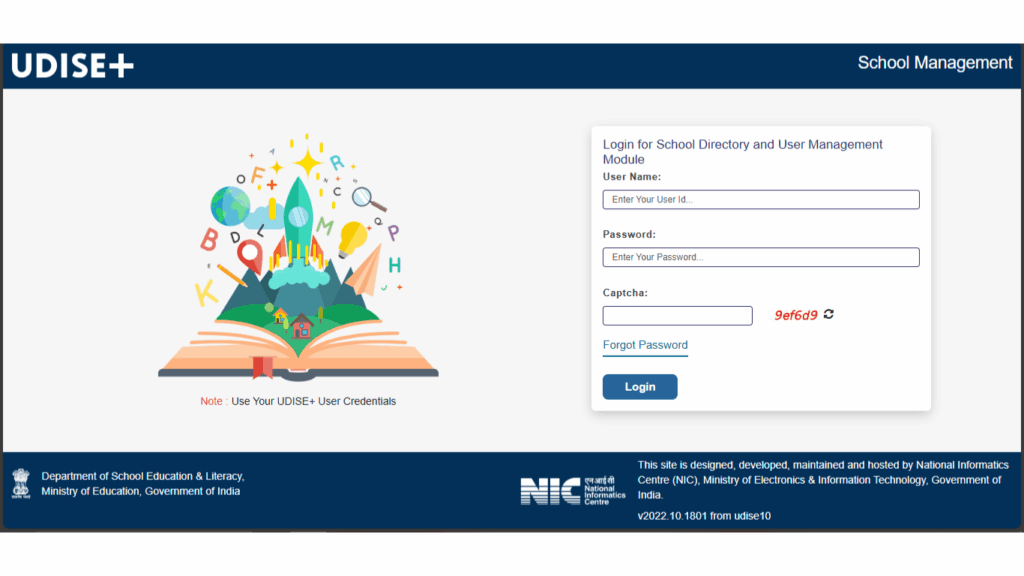
Enter your username, password, and Captcha code to log in. The directory dashboard allows school administrators and block officials to: - View and edit school location, contact details, and board affiliation. - Manage user roles and allocate edit permissions for data entry. - Reset passwords and update registered mobile numbers. - Add or register new schools under the district directory.
Searching School Details on the Know Your School Portal
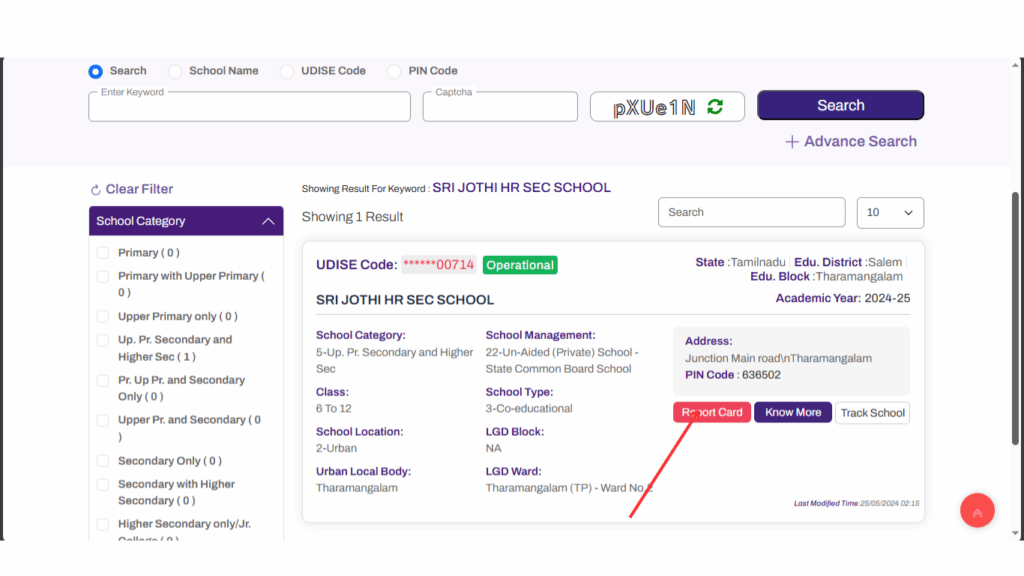
The **Know Your School** (KYS) portal is a public information system under UDISE+ that allows parents, teachers, and public users to search and view school profiles. To find your school, open your web browser and navigate to: kys.udiseplus.gov.in.
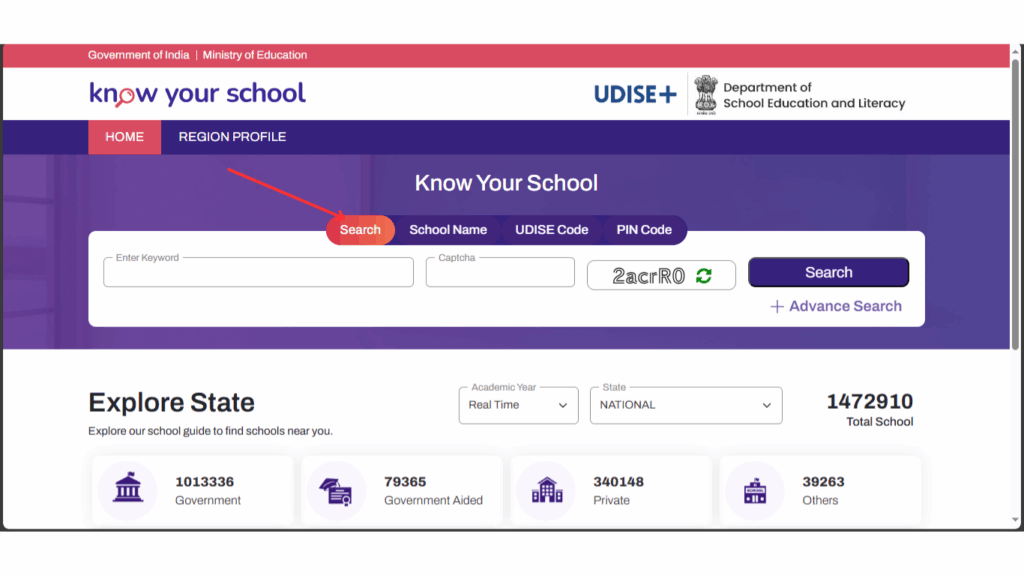
On the homepage, select your preferred search parameter: search by UDISE code, school name, or PIN code. Type the search keyword, resolve the Captcha, and click the search icon.
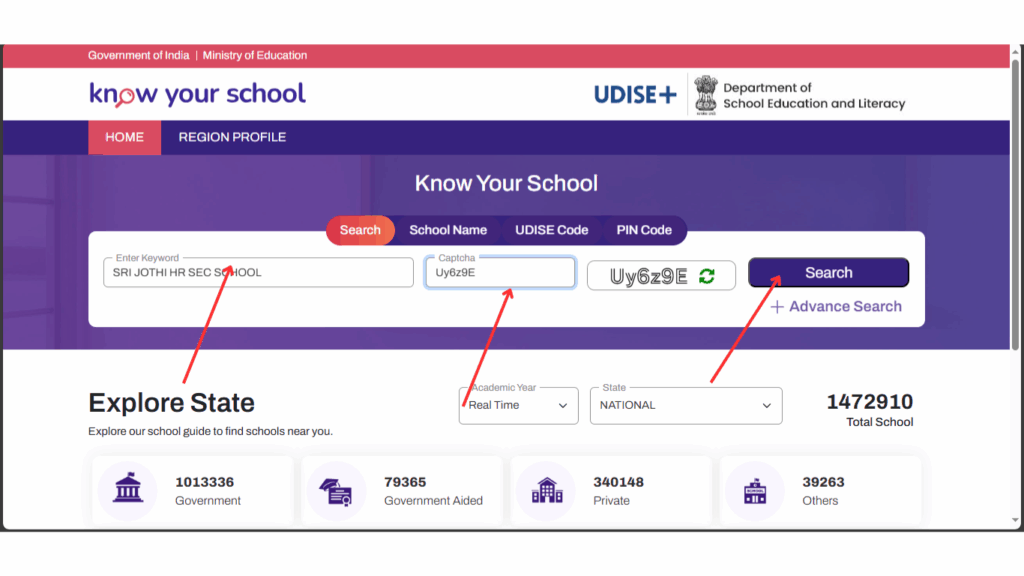
The system retrieves the list of matching schools. Click on the name of your school to open its summary card. The page displays basic coordinates such as address, board affiliation, and management details. Click the **"Get Report Card"** link to view facility and infrastructure profiles.
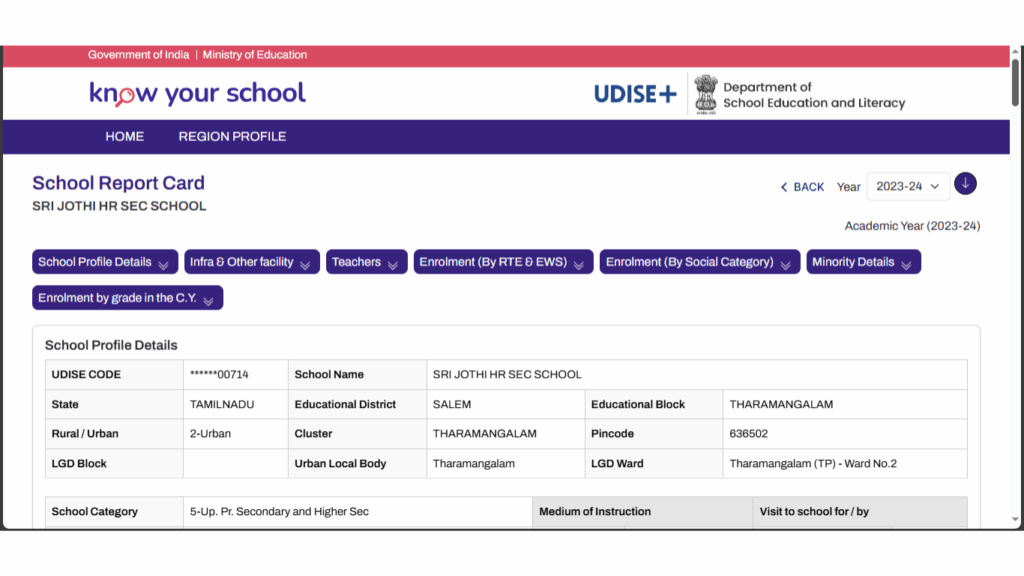
The portal loads the detailed school report card showing teacher counts, student enrollment figures, computer availability, toilet facilities, and building types. This information is pulled directly from the school's entries in the School Profile module.
Key Benefits of the Integrated UDISE Plus Database
The transition from traditional paper reporting systems to the online integrated UDISE+ database represents a monumental shift for educational administration in India. By bringing all schools, profiles, facilities, teachers, and student details under one central registry, the system offers several key institutional benefits:
- One Nation, One Database: Establishes a singular reference directory for school demographics, eliminating duplicates and contradictions between central board data and state-level registries.
- Automated Validation Checks: Prevents administrative errors by implementing real-time logical rules. For example, the system will raise an alert if a school tries to log smart classrooms without recording electricity meters.
- Direct Benefit Transfers (DBT): Student profiles registered under SDMS link directly to national scholarship databases and the Aadhaar framework, streamlining financial support and composite school grants directly to eligible accounts.
- Academic Lifecycle Tracking (PEN): By assigning a Permanent Education Number to every child, the system maps their lifecycle from pre-primary through secondary education. This tracks student migrations, dropout patterns, and retention metrics across different states.
- NEP 2020 Compliance: Provides state governments and policymakers with accurate benchmarks to track foundational literacy, vocational training integration, and gender parity index trends.
Major Challenges Faced During UDISE Plus Operations
Despite the platform's robust architecture, administrators and HOS face several structural and technical challenges during data compilation cycles:
- Regional Network Disconnections: Many rural schools in hilly or forested regions experience low internet bandwidth, causing page load failures and Captcha refresh errors on the SDMS console.
- Demographic Discrepancies: Minor spelling differences in a student's name, gender, or date of birth between school admission registers and their Aadhaar registry will trigger validation errors, blocking updates.
- Server Load During Deadlines: As the annual submission deadline approaches, millions of schools access the server simultaneously, leading to gateway timeouts and slow response speeds.
- Workload on Educators: Manually updating GP, EP, and SF profiles for hundreds of students, while also managing teaching schedules, places a significant administrative burden on teachers.
To mitigate these challenges, the education department recommends maintaining local spreadsheets of student data beforehand, using off-peak portal hours (such as early mornings or late nights) for entries, and coordinating with Block MIS coordinators to batch-resolve Aadhaar mismatch tags.
Troubleshooting Login Failures & Common Portal Mismatch Errors
While using the UDISE+ portals, school users may occasionally encounter login failures and interface blockages. Below is a guide to help you resolve the most common issues:
1. "Invalid Username or Password" Error
This is the most common error. Double-check that you are entering your correct 11-digit school UDISE code as the username. Ensure that Caps Lock is off, as passwords are case-sensitive. If the issue persists, click the "Forgot Password" link on the login page, enter your UDISE code and registered mobile number, and the portal will SMS a new password to the school head's phone.
2. Captcha Image Blank or Loading Error
If the Captcha image is blank or fails to load, it is usually due to browser cache congestion or network latency. Refresh the page to reload the Captcha. If it still doesn't load, clear your browser's cache and cookies, or open the portal in an Incognito (Private) window.
3. "Previous Academic Year Data Blocked" Alert
The portal will block active data entry for the current year (2026-27) if your school has not finalized and certified its entries for the previous academic year. Ensure that all modules for the previous term show a green "Certified" status. If a module is still pending, complete the required entries and submit the certification to unlock the current session.
4. Registered Mobile Number Changed
If your school head has changed and you no longer have access to the registered mobile number to receive OTPs or reset passwords, you cannot update it online. You must submit a written request to your Block MIS Coordinator. They will update the contact details under your school profile in the User Management Module, allowing you to resume logins.
Quick Checklist for UDISE Plus All Modules Login
Refer to this summary table for quick access and troubleshooting across the different UDISE+ modules:
| Module Name | Primary Purpose | Key Login Attribute |
|---|---|---|
| School Profile & Facilities | Infrastructure, facilities, and grant details entry. | UDISE Code & BRC Password. Mandatory entry first in the cycle. |
| Teacher Module | Staff service records and qualification updates. | Allows teacher profile updates and HOS mapping configurations. |
| Student Module (SDMS) | Student profile data updates (GP, EP, SF) & Class 1 addition. | State-wise regional server login links. Compulsory for student tracking. |
| Report Module | Download school-wise or district-wise data reports. | Export comparative statistics in PDF or Excel sheets. |
| User Management | Reset password, edit roles, and directory lookups. | Coordinated through the Block MIS office for credential changes. |
| Know Your School (KYS) | Public lookup of school profiles and facility details. | No login required. Search by name, PIN, or UDISE code. |
Udise Plus Student (SDMS) Login Module (State Wise)
❓ Frequently Asked Questions (FAQs)
Here are the most common questions people ask about UDISE Plus: Login Guide for Student Module, Teacher, Profile & All Modules 2026-27.
✅ Conclusion
The UDISE Plus portal stands as the backbone of India's educational planning and resource allocation. Accurately managing the udise plus login student module, teacher module, and profile facilities is an essential administrative duty for every school head. By maintaining clean registries, tracking student progress via PEN, and validating information through the Know Your School portal, administrators can ensure error-free submissions. Reconciling school records locally and coordinating with Block MIS offices will resolve system blockages and keep school databases updated in the national directory.