UDISE Plus Login: The Complete Step-by-Step Guide for Every Module
📋 Table of Contents (click to collapse)
- Why UDISE Plus Login Feels Confusing at First
- Understanding the "Login for All Modules" Gateway
- Step-by-Step: How to Login UDISE Plus for the School Profile Module
- How to Access Teacher Module Login and Student Module (SDMS) Login
- State-Specific Redirection After UDISE Plus Login
- What to Do When UDISE Plus Login Fails
- Understanding the UDISE+ Dashboard Once You're In
- Common Mistakes to Avoid
- Module Login Comparison at a Glance
- Conclusion
- Frequently Asked Questions (FAQs)
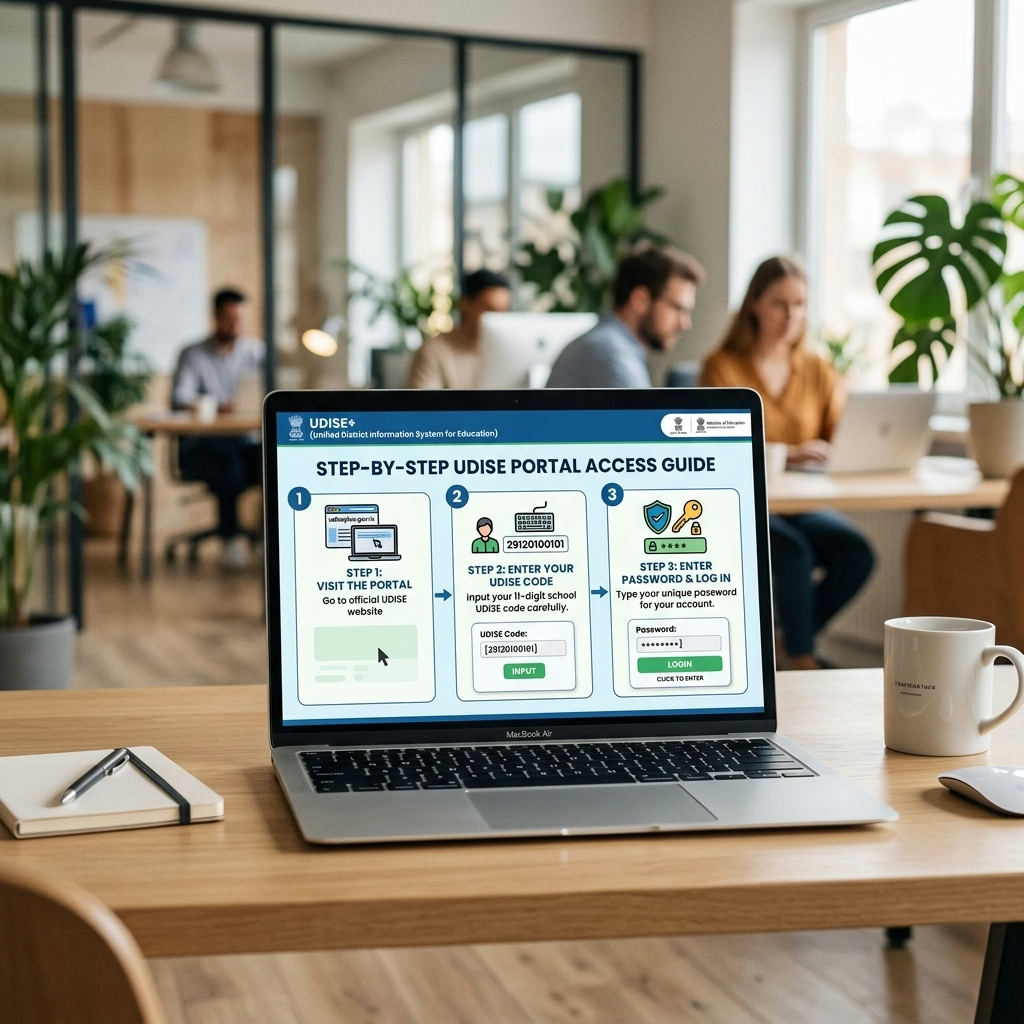
If you have ever sat in a staff room trying to open the right tab for the right module while a Block Education Officer waits on the phone, you already know that UDISE Plus login is not always as simple as it should be. The portal routes different users to different destinations depending on their role, and one wrong click can leave you staring at a blank dashboard. This guide walks you through how to login UDISE Plus correctly for the School Profile, Teacher Module, and Student Module (SDMS), plus what to do when the login screen refuses to cooperate.
By the end of this article, you will know exactly which gateway to use, how state-specific redirection works, and how to recover access when credentials stop working.
Why UDISE Plus Login Feels Confusing at First
Many first-time users search "how to login UDISE Plus" expecting a single form, only to discover a layered system. The UDISE+ ecosystem is not one single login screen — it is a family of related systems that share data but sit behind separate authentication points. The UDISE+ dashboard for School Profile and Facilities data is different from the Teacher Module login, which is again different from the Student Module login, commonly referred to as SDMS login. Each of these modules can also redirect you to a state-specific instance once you enter your UDISE code, because several states run their own branded MIS layers on top of the central UDISE+ framework.
This layered structure exists because UDISE+ is managed by the Department of School Education and Literacy, Ministry of Education, Government of India, and it aggregates data from every state and union territory. States retain some flexibility in how they present the portal to schools, which is why a teacher in Madhya Pradesh and a teacher in Kerala may see slightly different login pages even though both are ultimately feeding the same national database.
The good news is that the underlying login logic stays consistent everywhere: enter your school or user credentials, get authenticated, and land in the module you need. Once you understand the gateway structure, jumping between modules becomes second nature.
Understanding the "Login for All Modules" Gateway
Most schools now start their session from a single access point often labelled "Login for All Modules" on the UDISE+ home page. This is the recommended starting point because it reduces the chance of bookmarking an outdated or module-specific URL that later gets deprecated.
How the Gateway Routes You
- Open the official UDISE+ portal home page in a fresh browser tab.
- Locate the Login for All Modules link, usually placed prominently on the homepage or under a "Login" menu.
- Select your role — School, State, District, Block, or Cluster level — since the gateway presents different fields depending on who is logging in.
- Enter your registered user ID (often your 11-digit UDISE code or a state-assigned username) and password.
- Complete any CAPTCHA or OTP verification step shown on screen.
- After authentication, the gateway hands you off to the specific module dashboard tied to your role — this is where School Profile, Facilities, Teacher, and Student data converge.
Using this single gateway matters because schools that log in through old, module-specific bookmarks sometimes hit session mismatches, especially right after the Ministry pushes a portal update. If you only remember one rule for UDISE Plus login, make it this: always start from the current gateway page rather than a saved shortcut.
You can read our article on What Is UDISE Plus? to understand the overall architecture.
Step-by-Step: How to Login UDISE Plus for the School Profile Module
This is the sequence most administrators mean when they ask how to login UDISE Plus for day-to-day work. School administrators typically spend the most time in the School Profile and Facilities sections, since this is where the annual Data Capture Format (DCF) gets filled and certified.
Logging In as a School User
- From the "Login for All Modules" gateway, select School as your user type.
- Enter your 11-digit UDISE code as the login ID.
- Type your password exactly as set — passwords are case-sensitive, and a common mistake is leaving Caps Lock on without noticing.
- Verify the CAPTCHA text carefully; ambiguous characters like "0" and "O" cause repeated failed attempts.
- Click the login button and wait for the School Profile dashboard to load fully before clicking anything else.
What You Should See After a Successful School Profile Login
Once inside, you should land on a dashboard showing your school's basic details, DCF status, and links to Facilities, Enrollment, and Teacher sections. If your screen shows a different school's data or an unfamiliar UDISE code, log out immediately and re-enter your credentials — this usually means a cached session from a previous user is still active on that browser.
Read our step-by-step guide on How to Certify UDISE Plus School Profile and Facilities.
How to Access Teacher Module Login and Student Module (SDMS) Login
Once you are comfortable with the School Profile flow, the Teacher Module login and Student Module login follow a similar pattern but serve very different data sets.
Teacher Module Login Steps
- From the main gateway or dashboard, click through to the Teacher Module.
- Some states require a separate teacher-specific login ID distinct from the school's main UDISE credentials — check your state's specific instructions if the school ID does not work here.
- Enter the teacher or school-level credentials as prompted.
- Once authenticated, you will see a list of teachers linked to your UDISE code, along with options to add, edit, or certify individual teacher records.
Student Module (SDMS) Login Steps
- Locate the SDMS login link, which may sit on a slightly different sub-domain than the main UDISE+ portal.
- Log in using your school credentials; SDMS typically mirrors the School Profile login ID and password.
- On first login each academic year, you may be prompted to confirm your school's enrollment baseline before entering individual student records.
- Navigate to the student roster to begin data entry, promotion, or PEN-related tasks.
A common mistake schools make is assuming SDMS shares a live session with the main UDISE+ portal. It often does not — treat it as a distinct login for the Student Module.
Refer to our detailed walkthrough on the UDISE Plus Student Module (SDMS) Guide.
See our step-by-step tutorial on UDISE Plus Teacher Module Guide.
State-Specific Redirection After UDISE Plus Login
Because states operate their own layers over the central system, your login may redirect you to a state MIS portal immediately after authentication. This is normal and does not mean your data is being handled outside UDISE+ — it simply means your state has built a localized front end.
When a school administrator in a rural block first encounters this redirection, the instinctive reaction is often panic, assuming the login failed or sent them to the wrong website. In reality, the redirected URL usually still carries "udise" or the state education department's domain in the address bar, confirming you are in the right place. Always check the URL and page header before assuming something went wrong.
If your state uses a distinct MIS name (some states brand their systems separately from "UDISE+"), your School Profile, Teacher, and Student data still ultimately synchronizes back to the central UDISE+ database that the Ministry uses for planning and grants.
What to Do When UDISE Plus Login Fails
A failed UDISE Plus login is among the most common support queries school staff raise, and most cases fall into a handful of predictable categories.
Troubleshooting Steps
- Re-check your UDISE code. A single transposed digit in the 11-digit code is the single most frequent cause of failed logins.
- Clear browser cache and cookies, or try an incognito/private window — old session data frequently interferes with fresh login attempts.
- Confirm Caps Lock is off and that autofill has not inserted an outdated saved password.
- Check for scheduled maintenance. The Ministry periodically takes the portal offline for updates; a maintenance banner should indicate this.
- Use the password reset flow if you suspect your password itself is wrong rather than mistyped.
- Contact your Block or District MIS coordinator if the account appears locked after multiple failed attempts, since some states auto-lock accounts for security after a set number of tries.
[Internal link: full password recovery walkthrough → How to Reset or Change Your UDISE Plus Password]
Understanding the UDISE+ Dashboard Once You're In
After a successful UDISE Plus login, the UDISE+ dashboard becomes your command center. Expect to see your school's UDISE code, current DCF completion status, quick links to Facilities, Teacher, and Student modules, and often a notifications panel flagging pending certifications or validation errors. Bookmark this dashboard URL rather than any individual module page, since the dashboard consistently routes you correctly even after the portal updates its internal structure.
[Internal link: fixing validation flags seen on the dashboard → Common UDISE Plus Data Entry Errors (and How to Fix Them)]
Common Mistakes to Avoid
- Using an old bookmarked login page instead of the current "Login for All Modules" gateway, which can point to deprecated URLs.
- Sharing one login across multiple staff members without logging out between sessions, leading to accidental edits under the wrong name.
- Ignoring browser autofill errors, especially when a password manager saves an outdated password after a reset.
- Assuming Teacher Module and SDMS share the School Profile session — each module often needs its own explicit login.
- Panicking at state-specific redirection instead of confirming the URL is legitimate before re-entering credentials elsewhere.
- Attempting more than 4-5 rapid login attempts after a failure, which can trigger an account lock rather than resolve the issue.
Module Login Comparison at a Glance
Since UDISE Plus login behavior differs slightly by module, use this quick reference before you start a session.
| Module | Typical Login ID | Common Redirect Behavior | Primary Use |
|---|---|---|---|
| School Profile | 11-digit UDISE code | Lands on main UDISE+ dashboard | DCF, Facilities, general school data |
| Teacher Module | School UDISE code or teacher-specific ID | May open a separate teacher data screen | Add/edit/certify teacher records |
| Student Module (SDMS) | School UDISE code | Often on a distinct SDMS sub-domain | Student entry, promotion, PEN management |
| Know Your School (KYS) | No login required | Public-facing lookup | Verifying any school's basic public data |
Conclusion
Mastering UDISE Plus login across every module comes down to using the correct gateway, keeping your credentials current, and knowing which troubleshooting step to try first when something breaks. Once you have logged into School Profile, Teacher Module, and SDMS a few times, the workflow becomes routine rather than stressful. If your school has not yet completed this year's login and data cycle, start today with the "Login for All Modules" gateway and work through each module systematically rather than jumping between tabs.
[VERIFY: current academic-year login deadline before publishing]
---
Udise Plus Student (SDMS) Login Module (State Wise)
❓ Frequently Asked Questions (FAQs)
Here are the most common questions people ask about UDISE Plus Login: The Complete Step-by-Step Guide for Every Module.
✅ Conclusion
Keeping your school and employee data updated on the UDISE+ platform ensures compliance with government mandates, saves valuable time during audit cycles, and facilitates seamless transfers.