UDISE Plus Teacher Module: School Head & Teacher Mapping Guide 2026-27
📋 Table of Contents (click to collapse)
- Introduction to Teacher and HOS Mapping in UDISE Plus
- Understanding the School User Matrix & Permissions Dashboard
- Step 1: Navigating to the UDISE Plus Portal Homepage
- Step 2: Accessing the Teacher Module Login Gateway
- Step 3: Entering School Credentials and Captcha Code
- Step 4: Navigating the Teacher Module Main Dashboard
- Step 5: Locating the Teaching and Non-Teaching Staff Registry
- Step 6: Finding the Map Button next to Head of the School
- Step 7: Selecting the Mapping Method (Within School, Other School, Block Level)
- Step 8: Mapping a Teacher as School Head (HOS) / Assistant Head (AHOS)
- Troubleshooting Common Head Teacher Mapping Issues
- Quick Checklist for UDISE Plus HOS Mapping
- Frequently Asked Questions (FAQs)
Introduction to Teacher and HOS Mapping in UDISE Plus
In the national educational database, keeping track of administrative leadership at the school level is crucial. One of the most critical administrative tasks for school users is completing the head teacher mapping in udise plus. This process ensures that every school in the country has a clearly identified Head of School (HOS), Assistant Head of School (AHOS), or Head Teacher registered in the central system. It prevents portal data blockages and forms a vital part of educational management information systems.
This guide explains the step-by-step process of head teacher mapping in udise plus for the academic year 2026-27. We detail how to access the portal, inspect your user matrix permissions, navigate teaching/non-teaching staff logs, choose between within-school or block-level options, and update administrative details without errors. By following these steps, school coordinators can ensure compliance and avoid BRC rejection flags.
Understanding the School User Matrix & Permissions Dashboard
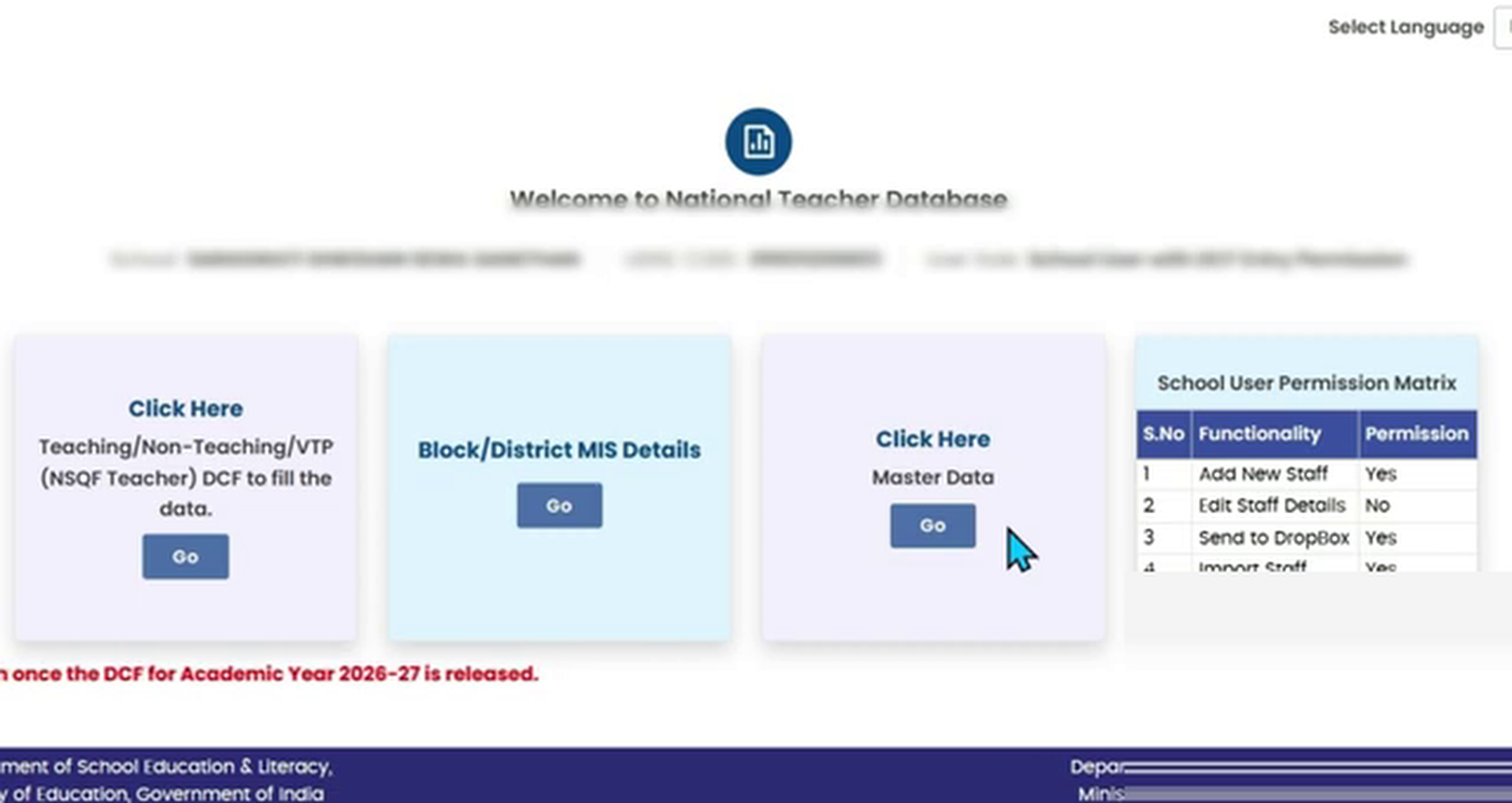
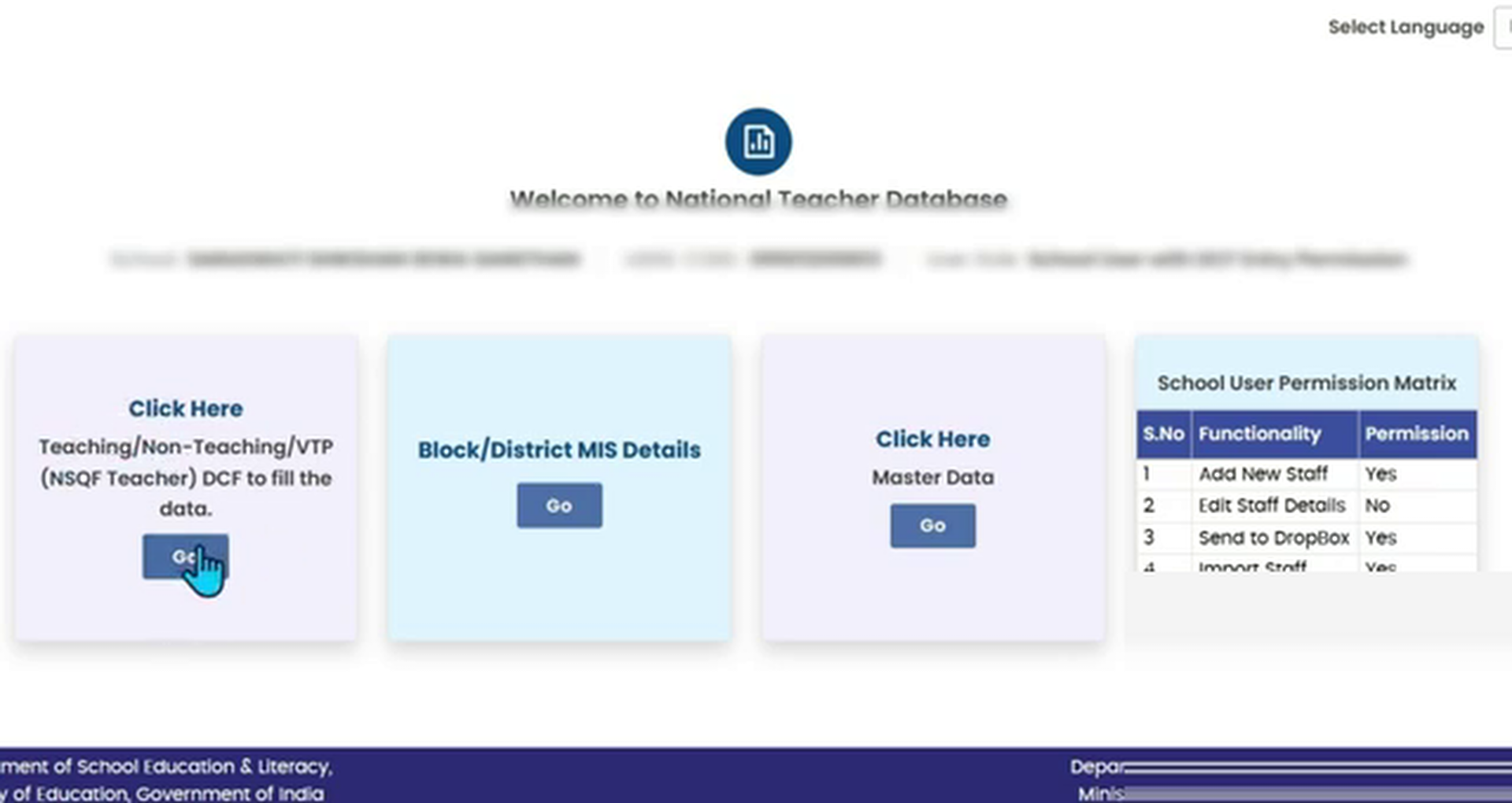
When you log into the teacher module, the portal displays a critical grid named the School User Matrix. This dashboard shows the operational permissions granted to your school for the current session. For the UDISE+ session 2026-27, the default permissions are structured as follows:
- Add New Staff: Allowed (Yes) — You can add fresh teaching or non-teaching members directly.
- Edit Staff Details: Blocked (No) — General profile edits are restricted and must be unlocked via block requests.
- Delete / Send to Dropbox: Allowed (Yes) — You can delete outgoing teachers and release them to the dropbox list.
- Import Teacher: Allowed (Yes) — You can import teachers from other schools using their National Teacher Codes.
Understanding these settings is critical because you can only map teachers who are already active in your staff registry. If a new head teacher has joined your school, you must first import them using the udise plus teacher module mapping tool before they appear in the mapping dropdown list.
Step 1: Navigating to the UDISE Plus Portal Homepage
Open your web browser and navigate to the official portal page: udiseplus.gov.in. Locate the main options panel on the landing page. Click the blue button labeled "Login For All Modules" to open the central gateway selection menu.
Step 2: Accessing the Teacher Module Login Gateway
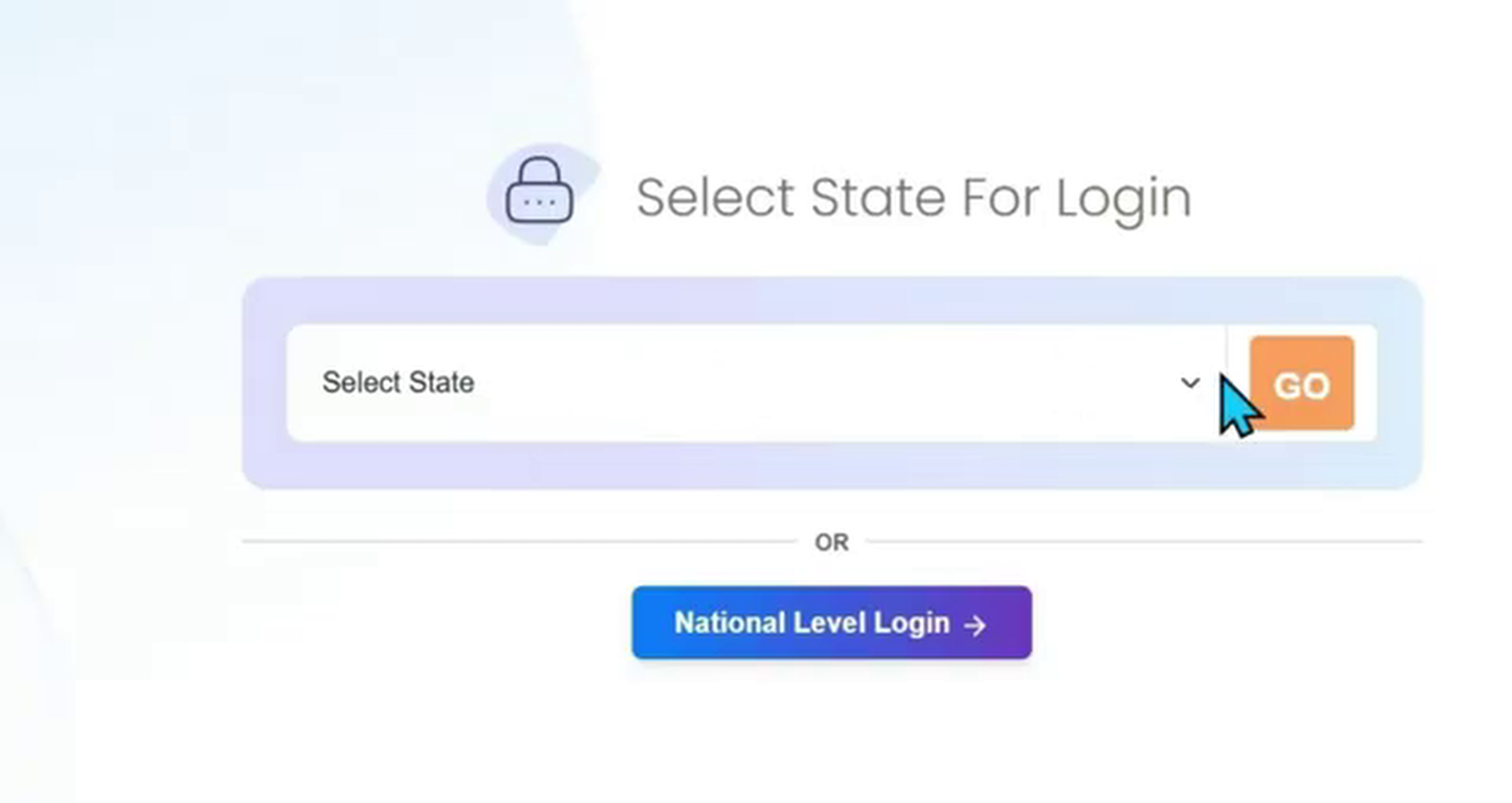
On the central gateway screen, scroll down to locate the card for the Teacher Module. Click the login link shown on the card to open the regional sign-in form. Ensure you select the active academic session 2026-27 to update the leadership details for the current session.
Step 3: Entering School Credentials and Captcha Code
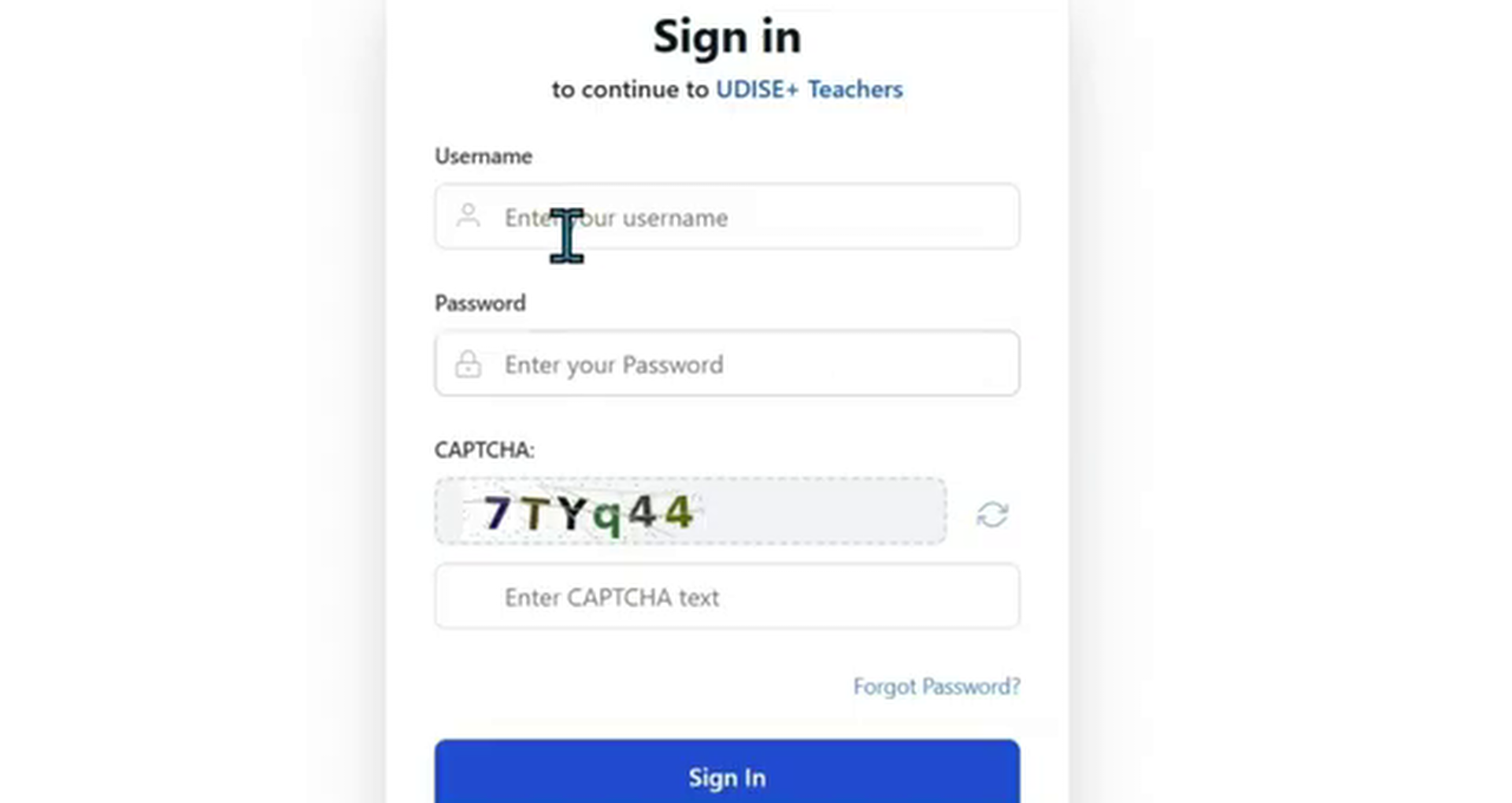
The system displays the teacher module login window. Enter your school's unique 11-digit UDISE Code as the Username. Type in your registered school password, enter the visual Captcha code exactly as shown, and click the blue "Sign In" button.
If you have forgotten your credentials, use the "Forgot Password" utility below the fields. This sends a password reset link to the school head's registered mobile number and email ID.
Step 4: Navigating the Teacher Module Main Dashboard
Once you are logged into the portal, you will be redirected to the dashboard which contains options for head teacher mapping in udise plus. On this dashboard, you will first see the School User Matrix displaying the active permissions for your school user. Below the matrix table, locate the blue link card labeled "Click here to open Teacher DCF" to enter the operational data capture format.
Step 5: Locating the Teaching and Non-Teaching Staff Registry
The console displays the school profile summary along with a count of teaching and non-teaching staff. Selecting the teacher registry is the first operational step for the head teacher mapping in udise plus. Under the "Teaching Staff" row, click the blue button labeled "Go". This redirects you to the active staff directory showing all registered teacher profile cards.
Step 6: Finding the Map Button next to Head of the School
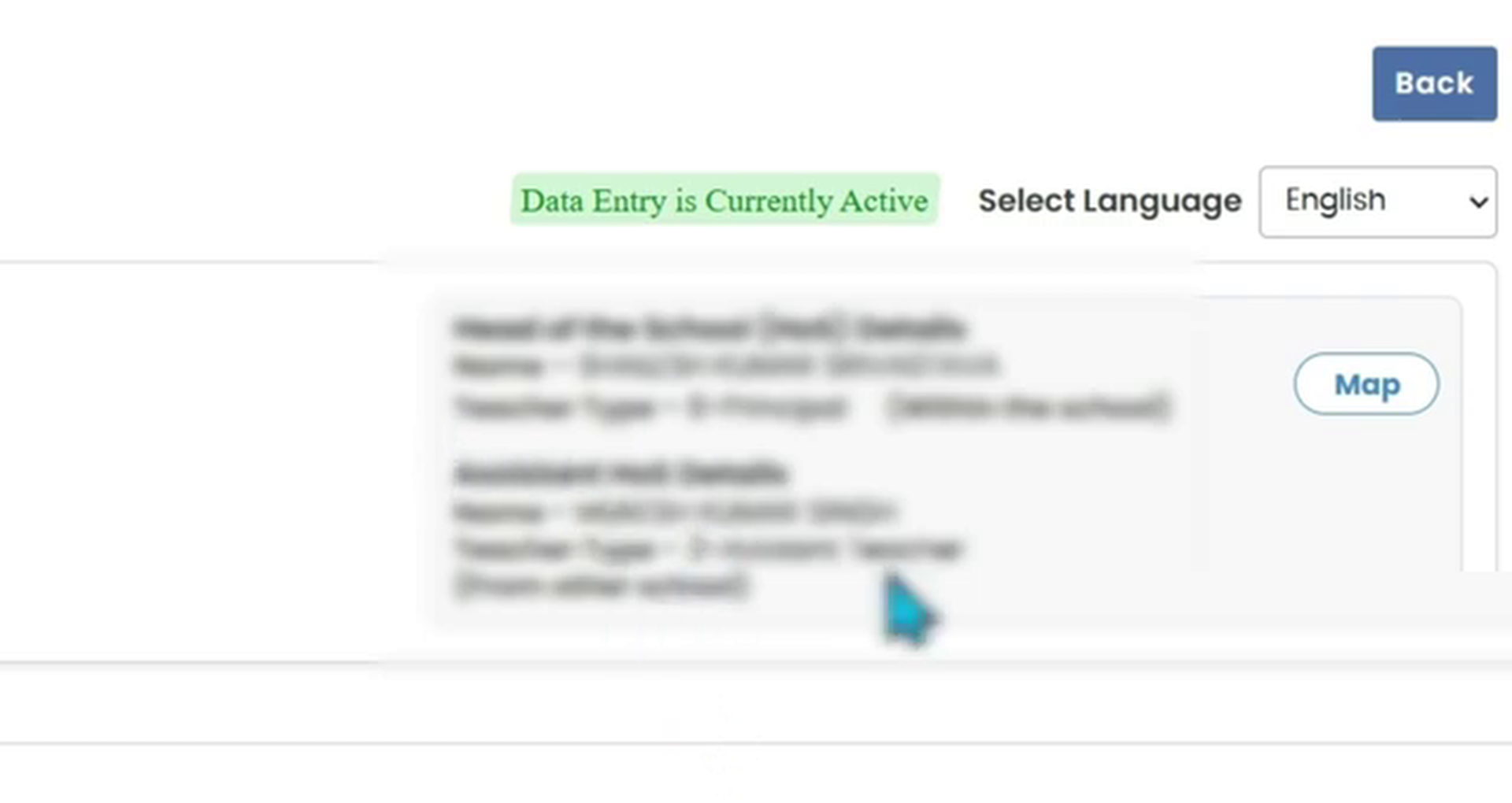
The staff registry displays the comprehensive list of teaching profiles. At the top of the profile listings, you will see a dedicated configuration panel showing the current administrative mapping details. Locate the "Head of the School" field, where the actual head teacher mapping in udise plus is performed. Click the blue button labeled "Map" next to this row to launch the configuration dialog.
Step 7: Selecting the Mapping Method (Within School, Other School, Block Level)
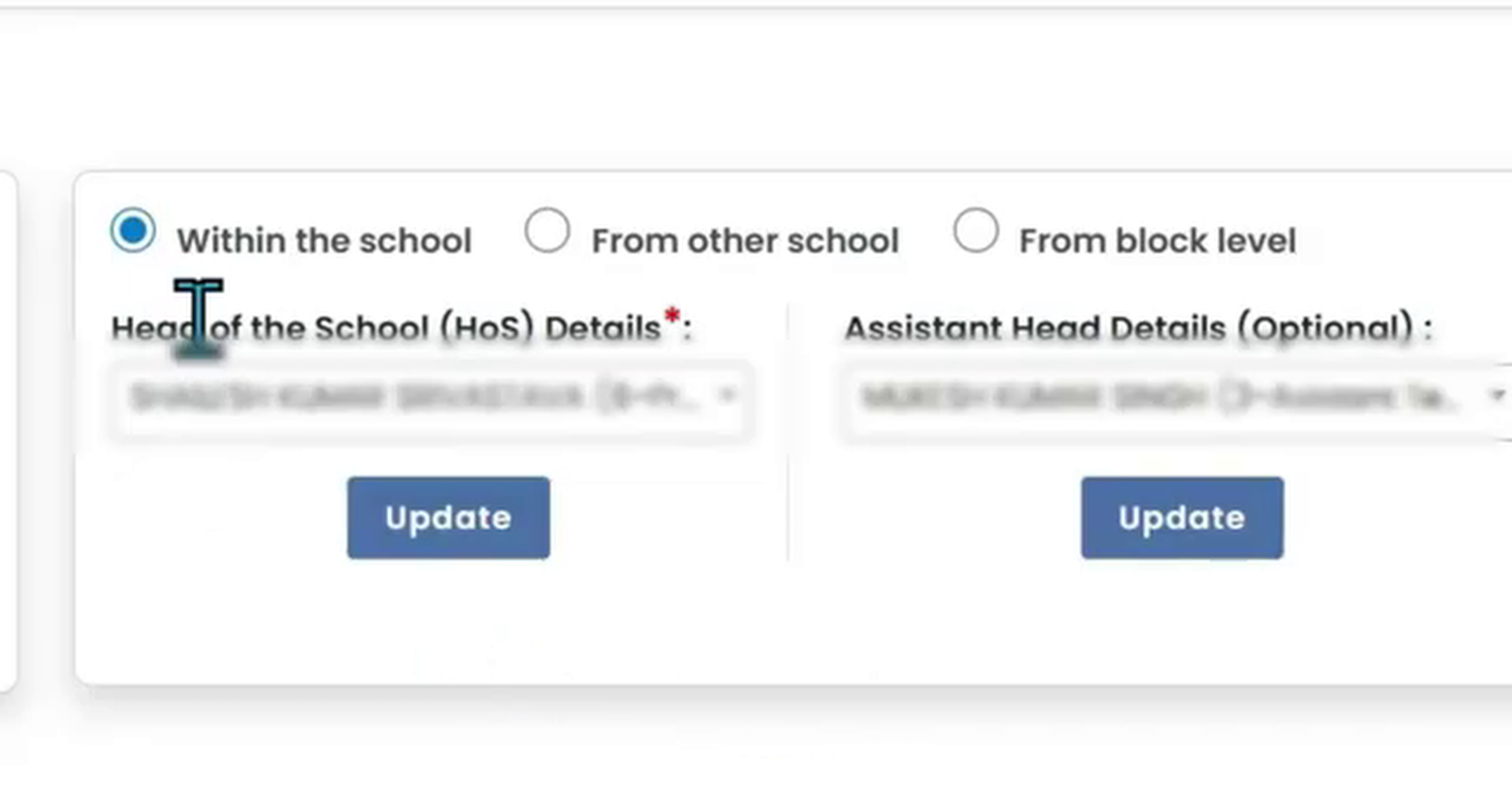
To complete the head teacher mapping in udise plus, the portal provides three distinct methods. Select the option that matches your school's current administrative setup:
- Within the School (Recommended): Select this if your head of school is a regular staff member already registered in your school list. This is the case for over 90% of schools.
- From Other School: Use this option if the head teacher is officially registered under another school's UDISE registry but manages your school as a head/coordinator.
- From Block Level: Choose this if your school is managed by a block-level education officer or district coordinator.
Step 8: Mapping a Teacher as School Head (HOS) / Assistant Head (AHOS)
Selecting a teacher from the dropdown list is the primary method of head teacher mapping in udise plus. Depending on the method selected in Step 7, complete the entry fields as described below:
Option A: Within the School mapping
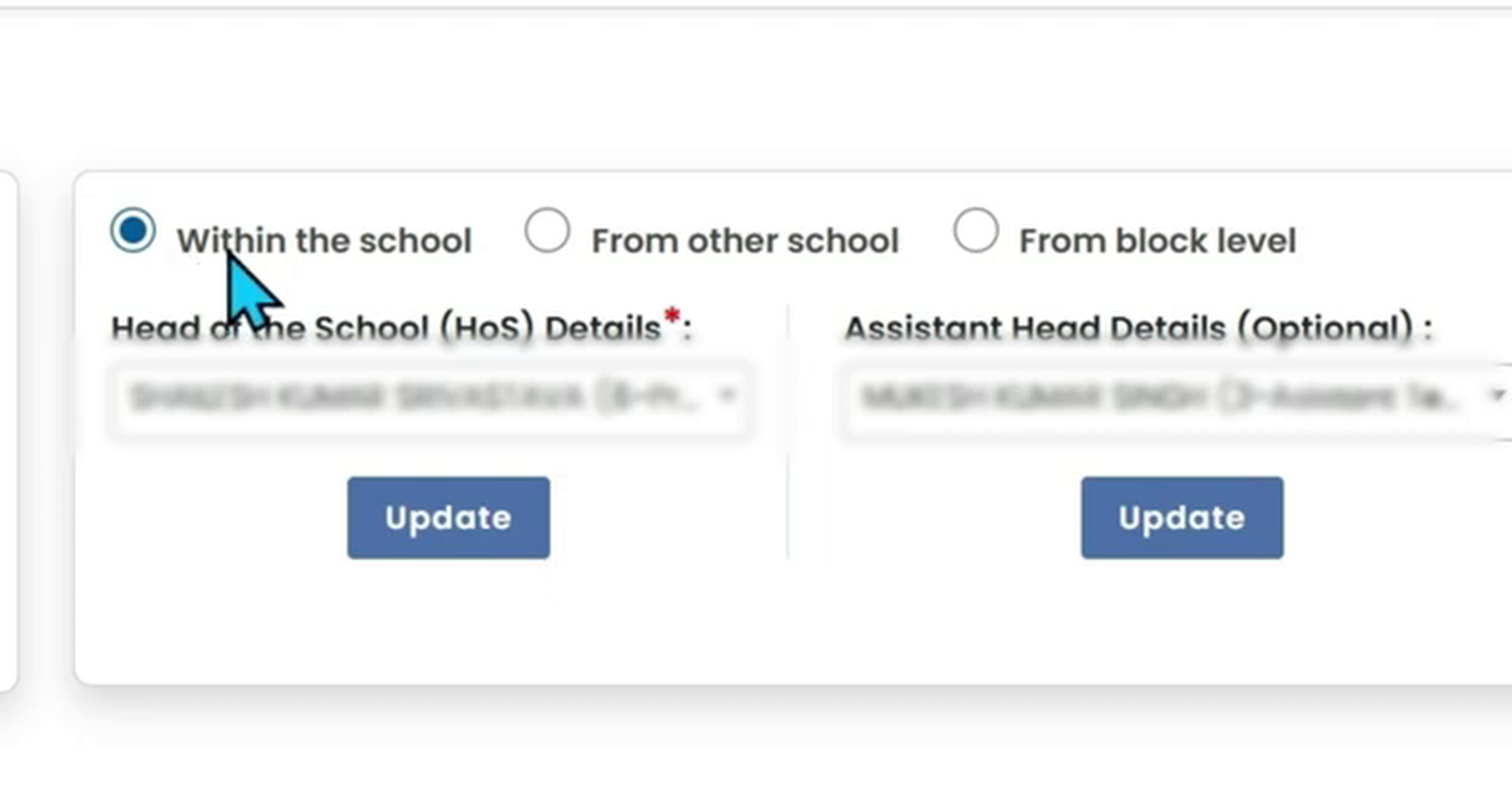
When you select "Within the School", the portal displays a dropdown selection box containing all active teachers in your school list. Click the dropdown list, select the name of the teacher who holds the HOS role, and click the blue "Update" button at the bottom of the form. This method of head teacher mapping in udise plus ensures that the school head's national teacher code is correctly linked to the administrative leadership post.
Option B: From Other School mapping
If the head teacher is joined from another school, you must use their national teacher code for head teacher mapping in udise plus. Enter the teacher's 11-digit National Teacher Code (PEN) in the input box and click search. The portal retrieves their details from the central database. Verify their identity, confirm they manage your school, and click "Update" to map their profile.
Option C: From Block Level mapping
For block level mappings, three specific fields must be completed during the head teacher mapping in udise plus. You must fill in the following details of the managing block officer:
- Block Staff Name: Full name of the block education officer.
- Designation: Operational designation (e.g., BEO, BRCC, Block MIS Coordinator).
- Mobile Number: Active mobile contact number.
Once entered, click the update button to save the block-level configuration.
Troubleshooting Common Head Teacher Mapping Issues
Many school users report errors or blockages when executing the head teacher mapping in udise plus. Below are the most common issues faced by school coordinators and how to resolve them:
1. Dropdown Menu is Empty
If the dropdown menu is empty, you cannot complete the head teacher mapping in udise plus online. This happens because the teacher's profile is not registered in your active school directory. To resolve this, you must either add them as a new teacher (if they are a fresh joiner) or import them from another school using their National Teacher Code. Once their profile shows an active status in your registry, their name will appear in the dropdown list.
2. Assistant Head Teacher Mapping Blocked
If you are unable to save the AHOS mapping, ensure that the selected teacher is not already mapped as the primary Head of School (HOS). The portal does not allow a single teacher profile to be mapped to both roles simultaneously.
3. Mapped Teacher Left the School
If a mapped school head transfers out of your school, you cannot delete their profile or send them to the dropbox list directly. You must first unmap them by mapping another active teacher as the HOS. Once the mapping is updated, the outgoing teacher's profile becomes editable, allowing you to mark them as left and release their record.
Quick Checklist for UDISE Plus HOS Mapping
Refer to this summary table to implement the correct workflow for how to map hos and ahos in udise plus:
| Mapping Scenario | Required Details | Key Administrative Action |
|---|---|---|
| Within the School | Teacher Dropdown Selection | Select teacher name from your active registry list and click Update. |
| From Other School | National Teacher Code (PEN) | Enter teacher's 11-digit code, verify profile, and save mapping. |
| From Block Level | Name, Designation, Mobile Number | Fill all three block staff fields and click Update (compulsory entry). |
| AHOS Mapping | Assistant Head Selection | Optional setup. Can be left unmapped if no assistant head teacher exists. |
Udise Plus Student (SDMS) Login Module (State Wise)
❓ Frequently Asked Questions (FAQs)
Here are the most common questions people ask about UDISE Plus Teacher Module: School Head & Teacher Mapping Guide 2026-27.
✅ Conclusion
Completing the head teacher mapping in udise plus is a mandatory administrative step to finalize and certify your school's Teacher Module. Whether your school coordinator maps a head of school from within the current staff, an external school, or block level, verifying details beforehand ensures error-free submissions. Reconcile teacher profiles, clean dropbox list states, and coordinate with block MIS offices to resolve empty dropdown list issues and lock your entries successfully.