Uttarakhand School Education Portal Teacher Login: Step-by-Step Guide & Portal Access
📋 Table of Contents (click to collapse)
- Introduction to Uttarakhand School Education Portal
- Understanding the Teacher Login Interface
- Step-by-Step Guide to Login on Uttarakhand Education Portal
- Resetting Your Teacher Password on the UK Education Portal
- Troubleshooting Common Login Issues and Errors
- Key Services Available for Uttarakhand Teachers Online
- Frequently Asked Questions (FAQs)
Introduction to Uttarakhand School Education Portal
The Department of School Education in Uttarakhand has prioritized administrative efficiency through its comprehensive digital initiative, the Uttarakhand School Education Portal. This online system serves as the central hub for teachers, administrators, schools, and students across the state. By integrating human resource databases, school statistics, and administrative workflows into a single system, the state government has eliminated excessive paperwork. As a teacher or school administrator in Uttarakhand, you must interact with this portal to manage your service records, handle student registration details, and participate in online transfer drives.
Historically, educational administration in the hilly terrains of Uttarakhand presented significant challenges. Teachers had to travel long distances to block or district headquarters to submit basic documents, apply for leave, or track transfer status. The deployment of the official portal has changed this scenario completely. Today, educators can access their service history, submit mandatory data, and communicate with the department from the comfort of their schools or homes. This shift not only saves valuable time but also increases transparency across the entire administrative hierarchy.
To access these tools, every educator must understand how to navigate the system securely. This guide explains the exact procedure for logging into the portal, managing credentials, and resolving the common issues that occur during login. Whether you are a newly appointed primary school teacher or an experienced headmaster, this detailed reference will help you navigate the system without administrative blockages.
educationportal.uk.gov.in. Fake websites copy the interface of government portals to capture usernames and passwords. Check the URL carefully before submitting any login credentials.
Understanding the Teacher Login Interface
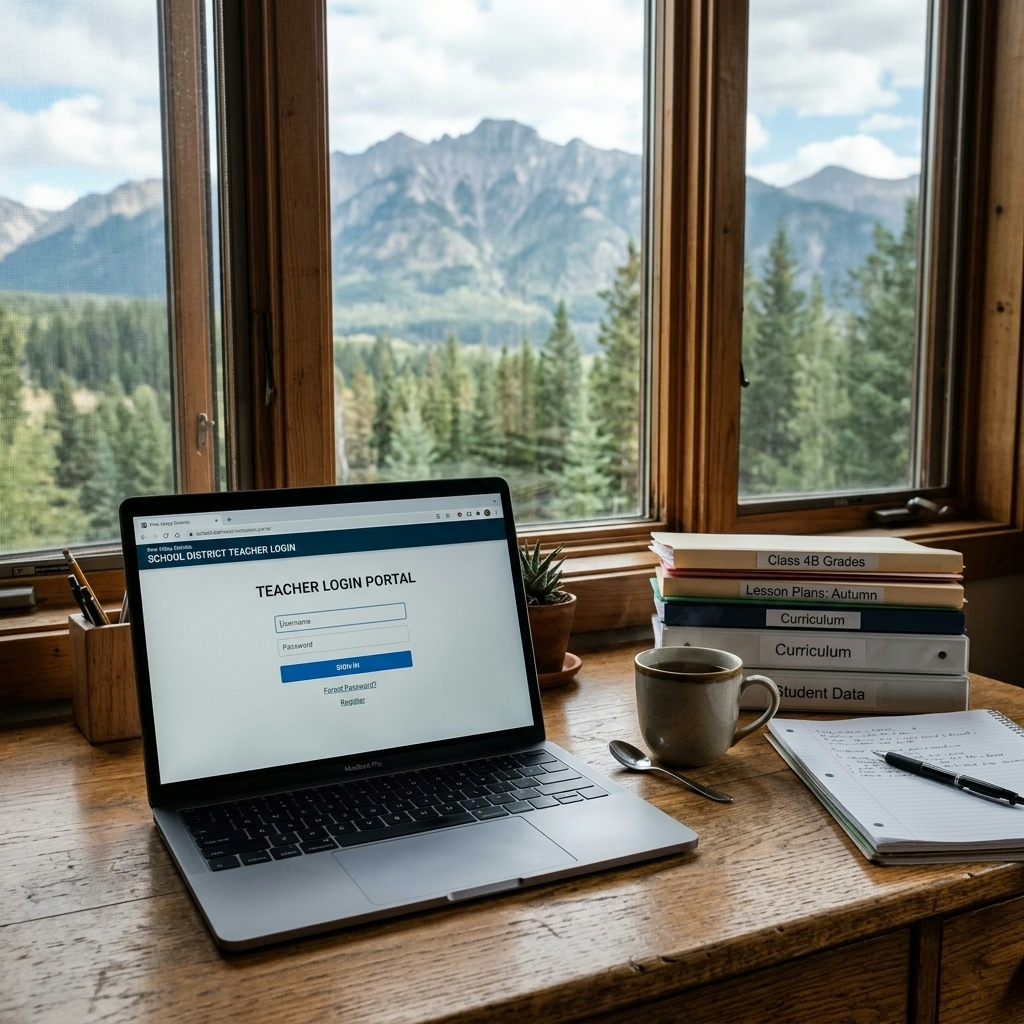
The login interface of the uttarakhand school education portal uses specific verification parameters to secure personal employee data. When you load the homepage, you will see multiple login modules tailored for different administrative roles. These modules cater to school-level administrators, block coordinators, district officers, and individual teachers. Selecting the correct gateway is crucial, as the system denies access if you enter teacher credentials into the school or block login fields.
For individual teachers, the portal employs the teacher education portal uttarakhand database. This module links directly to the state's Shaladarpan and HRMS databases. When you login, the portal fetches your specific teaching history, service book details, salary structures, and current posting details. The layout is optimized for both desktop browsers and mobile devices, allowing teachers in remote school blocks to access their profiles easily.
The login panel requires three primary inputs:
- User ID: This is your unique employee code (often referred to as the Shaladarpan ID or Employee Code) assigned during your initial appointment.
- Password: The confidential alphanumeric password that you configured during portal activation.
- CAPTCHA: A dynamic security code that prevents automated bots from attempting unauthorized login entries.
Step-by-Step Guide to Login on Uttarakhand Education Portal
Logging into your teacher account requires following a precise sequence of steps. If you encounter errors, verifying that you have executed each step correctly will usually solve the problem. Here is the step-by-step procedure to access your personal dashboard on the uttarakhand education portal login page:
Step 1: Navigate to the Official Website
Open a secure web browser on your computer or smartphone. Type educationportal.uk.gov.in into the address bar and press Enter. Let the homepage load completely. You will see the official logo of the Uttarakhand government and the School Education Department at the top of the page.
Step 2: Locate the Login Button
Look at the top right corner of the homepage or scan the primary navigation menu. You will find a link labeled "Login" or "Teacher/School Login". Click on this button to open the secure login gateway page.
Step 3: Select Your User Role
On the login page, you will see a dropdown list asking for your user category. Select "Teacher" or "Employee" from the options. Selecting this option configures the validation database to read teacher profiles rather than school directory files.
Step 4: Enter Your Credentials
Carefully type your unique Shaladarpan Employee Code in the Username field. This code is case-sensitive, so enter any alphabetical prefixes exactly as shown on your service card. Next, enter your password. Ensure that you enter symbols and capital letters correctly. Finally, look at the CAPTCHA image and type the letters or numbers into the verification box.
Step 5: Click Submit to Access the Dashboard
Double-check all entered fields. Once you are confident they are correct, click the "Login" or "Submit" button. The system will process your credentials. If they match the server record, the portal will load your personalized teacher dashboard. You can now access your service details, apply for leaves, or verify your transfer details.
| Login Phase | Actions Required | Critical Verification Points |
|---|---|---|
| Phase 1: Access | Open browser and enter educationportal.uk.gov.in |
Verify the "https://" security protocol in the URL bar |
| Phase 2: Input | Enter Employee Code, Password, and active CAPTCHA | Ensure Caps Lock matches your password criteria |
| Phase 3: Verify | Solve the mathematical or alphanumeric CAPTCHA | Refresh the CAPTCHA image if it is unreadable |
| Phase 4: Submit | Click the login button and wait for redirect | Do not press the back or reload buttons during validation |
Resetting Your Teacher Password on the UK Education Portal
Teachers frequently forget their passwords, especially if they only login during specific periods like the annual transfer window or the UDISE+ data synchronization season. The School Education Department provides a self-service password recovery tool. This tool enables you to retrieve your credentials without submitting paper requests to the district office. Follow these steps to reset your password:
Step 1: Click the "Forgot Password" Link
On the main login panel, locate the link that reads "Forgot Password?" or "Reset Password". Click on this link. The portal will redirect you to the account recovery page.
Step 2: Enter Your Employee Identifier
On the recovery page, type your official Shaladarpan Employee ID in the designated box. The database uses this ID to search for the linked mobile number and email account.
Step 3: Verification via OTP
Once you submit your Employee ID, the system will display the last three digits of your registered mobile number. If this number matches your current phone, click "Send OTP". Within a few minutes, you will receive a One-Time Password (OTP) via SMS from the government gateway.
Step 4: Set a New Password
Type the received OTP into the verification field. Once verified, the portal will prompt you to enter a new password. Your new password must meet the following security requirements:
- Must be at least 8 characters long.
- Must include at least one uppercase letter (e.g., A, B).
- Must include at least one lowercase letter (e.g., x, y).
- Must contain at least one numeric digit (e.g., 5, 8).
- Must feature at least one special character (e.g., @, #, $).
Troubleshooting Common Login Issues and Errors
Since the Uttarakhand School Education Portal hosts thousands of accounts, teachers occasionally encounter technical errors. Most of these issues result from browser settings, outdated login links, or incorrect data configurations. Understanding how to handle these errors saves valuable time. Below is a detailed troubleshooting matrix for the most common issues:
Issue 1: "Invalid Username or Password" Error
This is the most common error. If you are certain your password is correct, check your Employee Code format. Some older records use specific alphabetical prefixes that must match the case exactly (e.g., "EMP" vs "emp"). If the error persists, clear your browser's cookies and cached files, or try entering the password using the onscreen keyboard if available.
Issue 2: The CAPTCHA Image Fails to Load
If you see a broken image icon in place of the CAPTCHA code, your browser's security settings may be blocking the portal's script, or the portal is experiencing slow network speeds. Click the circular arrow icon next to the CAPTCHA box to refresh the image. Alternatively, disable any active ad-blockers or script-blocking extensions in your browser settings.
Issue 3: "Mobile Number Not Registered"
This message appears when you try to recover a forgotten password, but the system does not find a mobile number linked to your Shaladarpan profile. In this case, you cannot recover your password online. You must contact your school principal or Block Education Officer (BEO). They must update your mobile number through their administrative dashboard before you can use the self-service recovery tool.
Issue 4: Portal Loads a Blank Page After Login
If you see a white screen after clicking submit, the server might be experiencing high traffic, or your internet connection is unstable. Avoid clicking the submit button multiple times. Instead, close the browser window, wait a few minutes, and try logging in during off-peak hours (before 9:00 AM or after 6:00 PM).
Key Services Available for Uttarakhand Teachers Online
Once you successfully log in to the portal, the system grants access to several administrative tools. The Department of School Education designed these tools to streamline human resource management for the state's teaching staff. Knowing what these modules do will help you manage your career records effectively:
1. Online Teacher Transfer Application Module
Uttarakhand has implemented a transparent online transfer process under the state's teacher transfer laws. During the annual transfer drive, eligible teachers must login to the portal to view vacant posts across different zones (classified as Sugam and Durgam). You can select your posting preferences and submit your transfer application directly online, allowing you to track the approval process in real-time.
2. E-Service Book Verification
Your electronic service book (E-Service Book) contains your entire employment history. This includes your appointment date, promotion details, posting records, and leave accounts. Teachers should review this section quarterly. If you spot a discrepancy in your promotion date or educational qualifications, submit a rectification request through the portal to prevent future pension or promotion delays.
3. Monthly Salary Slip Download
The portal links directly with the state finance department database. This integration enables teachers to view and download their monthly payslips. You can generate these payslips to verify your Provident Fund deductions, tax withholdings, and basic salary structures. These documents are legally recognized for bank loans and income tax filings.
4. Leave Management System
Instead of submitting physical letters, teachers can apply for Casual Leave, Medical Leave, or Earned Leave through their dashboard. The system forwards the request to the headmaster or principal for digital approval, keeping your leave ledger accurate and updated automatically.
Udise Plus Student (SDMS) Login Module (State Wise)
❓ Frequently Asked Questions (FAQs)
Here are the most common questions people ask about Uttarakhand School Education Portal Teacher Login: Step-by-Step Guide & Portal Access.
✅ Conclusion
The Uttarakhand School Education Portal has revolutionized how teachers manage their professional records and administrative duties. By transitioning to a secure, digital framework, the Department of School Education in Uttarakhand ensures that employee information remains accessible and accurate. Whether you need to update your teacher profile, download salary slips, or apply for an annual transfer, mastering the login process is the crucial first step. Ensure you keep your credentials secure, update your password regularly, and use the official URL to safeguard your sensitive personal data.